


Start by creating a new file of banner size. Insert an image of river.

Create a rectangular selection using rectangular marquee tool. Press Ctrl+Alt+D to feather the selection. Press delete.

Duplicate the layer. Press Ctrl+T. Right click the layer and select flip horizontal. Move it to the left edge. Merge both the layers.
Create a rounded rectangle using rounded rectangle shape tool. Reduce the opacity to 50%.

Insert company name over rounded rectangle.

Insert a cutout of boat. Place it at the right corner of the banner.

Type other details in seperate layers. Apply some drop shadow.



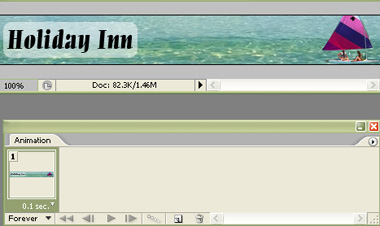
Open animation window. For the first frame hide all the detail layers.
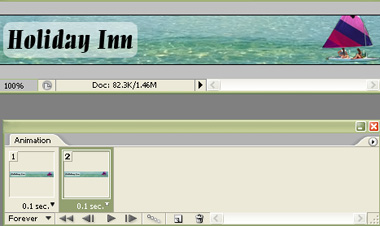
Duplicate frame. Move the river layer to the right.
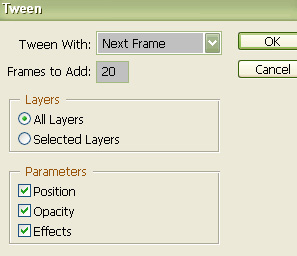
Press Tween button from the animation window. Apply settings as shown.
Select 2,3,4,5,6,7and 8 frame and unhide the first text layer.
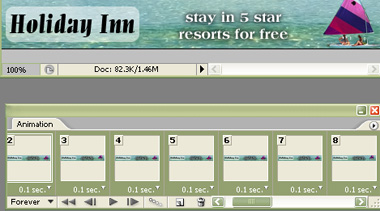
Select 10,11,12,13,14,15 and 16 frame and unhide the second text layer.
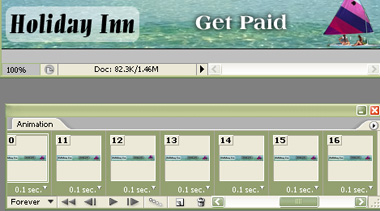
Repeat the steps for the next few frames to reveal the next text layer.
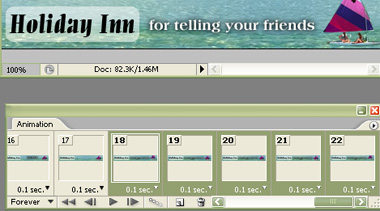
Select the odd number frames and move the boat layer 2 pixels upwards.
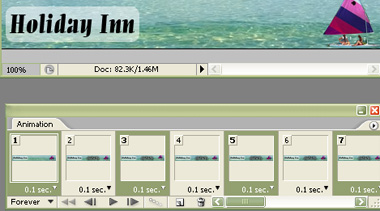
Press Ctrl+Alt+Shift+S to save an optimized animated GIF.

