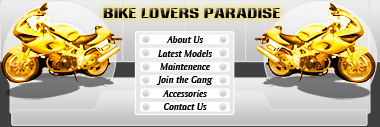
Start by creating a new file of header size. Fill the background with a solid color. Create a rounded rectangle using rounded rectangle shape tool.
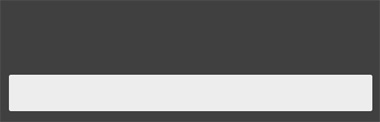
Double click the layer to open layer style window. Apply layer style with the settings shown.
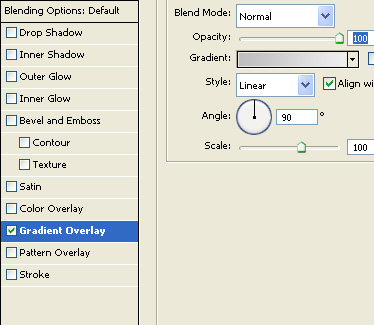
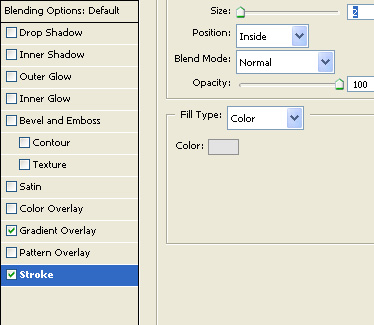
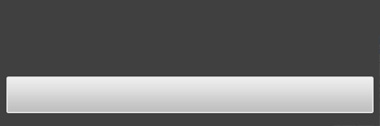
Create a path using pen tool. Place the shape at the bottom of the header
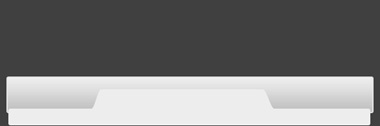
Apply the same layer style as we used for the first rectangle.
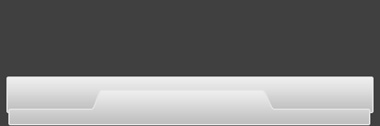
Create a rectangle using rectangular shape tool. Apply the same layer style.
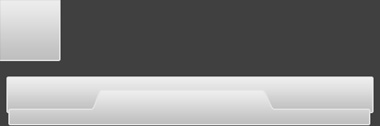
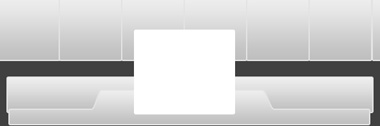
Create several duplicates of the rectangle layer and place as shown in the image below.

Create a rectangle above all the layers and place at the center of the header.
Double click the layer to open layer style window. Apply layer style with the settings shown.
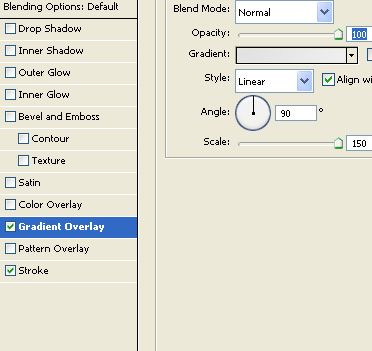
Double click the layer to open layer style window. Apply layer style with the settings shown.
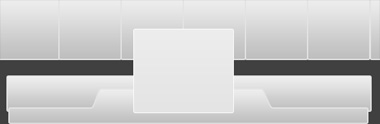
Create a rounded rectangle using rounded rectangle shape tool.
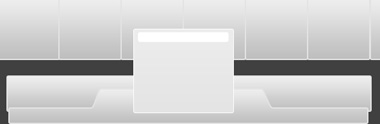
Duplicate the layer several times and place below each other.
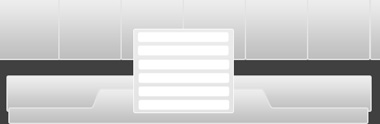
Create a circle using elliptical shape tool.
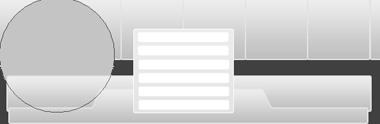
Double click the layer to open layer style window. Apply layer style with the settings shown.
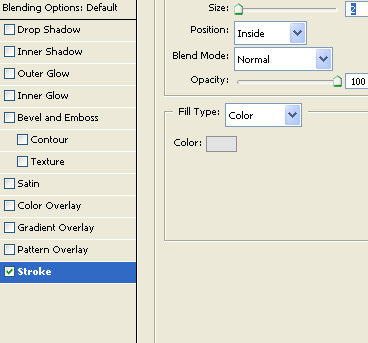
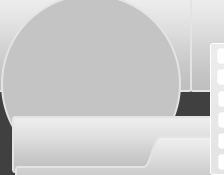
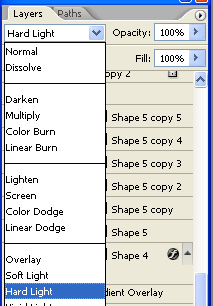
Change the layer mode to hard light.
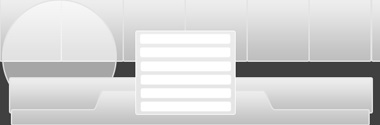
Duplicate the layer and scale down.
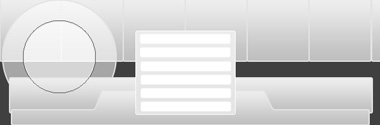
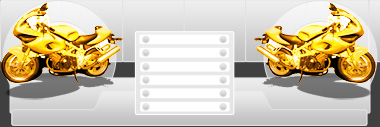
Duplicate both layers and place on the other side.
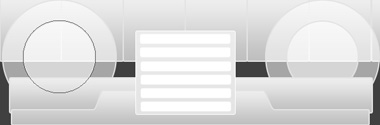
Create a small circle using elliptical shape tool. Place it on right side of the button.

Apply the same layer style as we used on initial shapes.

Duplicate layer several times and place as shown.

Insert an image of a bike and place over the left circle.
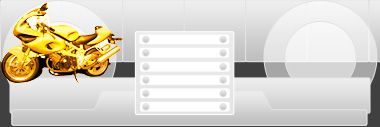
Duplicate layer. Enable lock transparent pixels from layer palette. Press Ctrl+T. Right click the layer and select distort. Fill it with black color. Adjust nodes to create a perspective shadow.
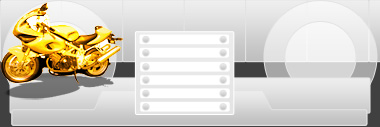
Similarly create it for the other side.
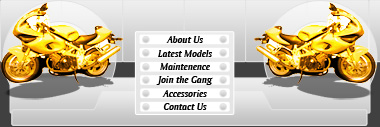
Type link names on the buttons.
Insert site logo and place right on the top.