Start by creating a new file. Fill the background with black color. Create a vertical rectangle using rectangular shape tool.

Create a few more rectangles of varying widths.
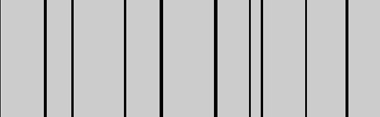
Select all rectangle layers in layer window. Right click and select group in a new smart object. This will group all layers in just one layer. Double click the layer to open layer style window. Apply layer style with the settings shown.
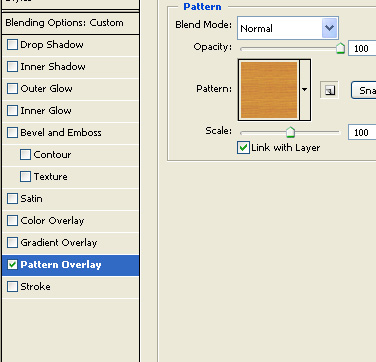
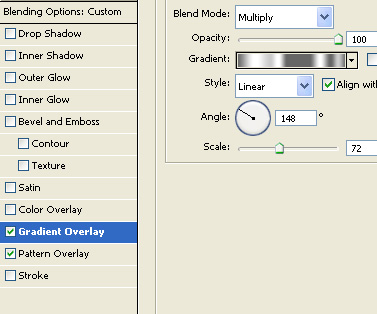
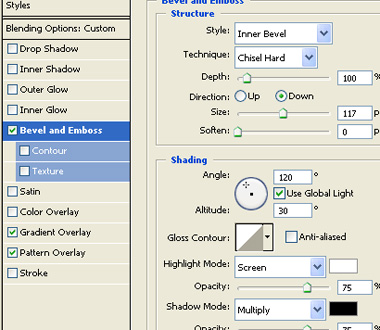

Type the button links using vertical type tool.

Select ornament 5 shape using custom shape tool.
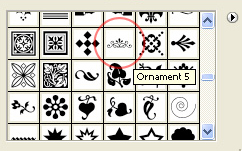
Apply on the image and rotate as shown below.

Double click the layer to open layer style window. Apply layer style with the settings shown.
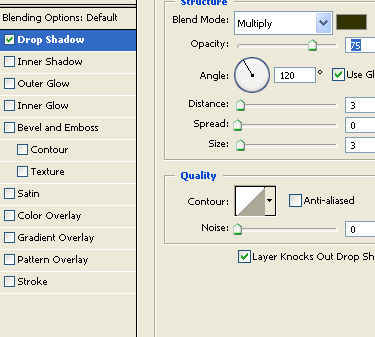

Duplicate, flip and place as shown in the image.

Using custom shape tool select a triangle frame.
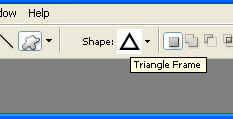
Apply it to the bottom of the header.

Fill the gaps by creating circular shapes.