Start by creating a small rectangle using rectangular selection tool.

Press Ctrl+T and right click. Select warp.
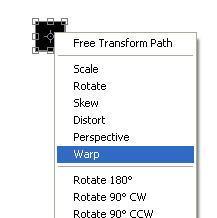
Adjust nodes as shown below.
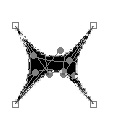

Press Ctrl+T and scale down the width.

Draw a small circle on top of this shape. It will look like a human icon.

In a new layer draw a big circle using elliptical shape tool. Select the circle with direct selection tool so that you can see the four nodes on the circumference of the circle.
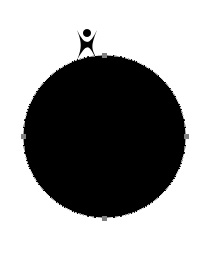
Press Ctrl+R to view the rulers. Drag two guides, one from top and other one from side and place at the nodes of the big circle. This way you'll get the center of the big circle at the cross section of the guides.
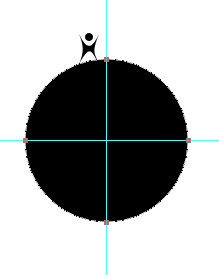
Move the human shape so that it aligns on top of big circle below the vertical guide.
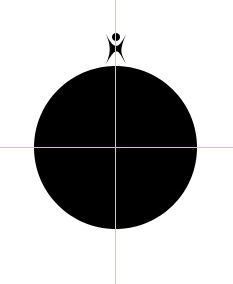
Press Ctrl+T and using move tool drag the anchor point of human icon and place on the cross section of guides.
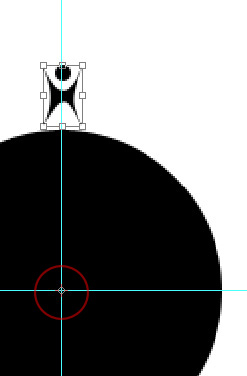
On top bar enter 18° in rotation angle. This will rotate the human icon by 18° on the circumference of the big circle. Press enter to accept the rotation.
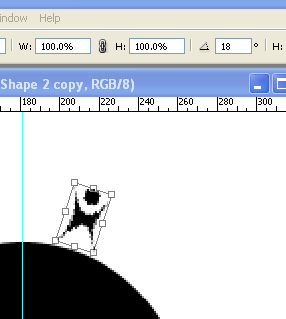
Press Ctrl+J and Shift+Ctrl+T to duplicate and rotate multiple times till a complete chain of human icons form on the circumference of the big circle.

Hide the big circle layer.

Select the world shape using custom shape tool.
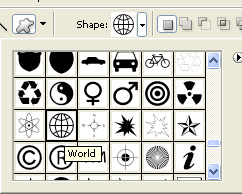
Draw this shape at the center of the human chain.

Merge the human icons and world shape together. Scale down the layer and move to the left.

Type the name of the organization along with punch line with a nice font and place it to the right.