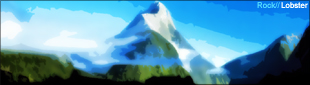
This tutorial will show you how to simply and easily create a Vector effect on an image!
Advice
You'll probably want to head over to Stock.XCHNG and create an account so you can get some good quality stock pictures.
Step One
I used this one:
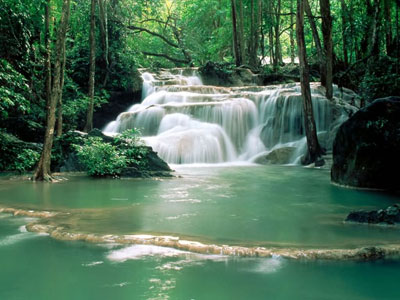
Open up your image and duplicate it by right clicking on the layer and selecting Duplicate. Then set the blending style of this layer to Overlay.
Step Two
Select the top layer and Go to Filter>Artistic>Cutout and use these settings
No. of Levels = 8
Edge Simplicity = 5
Edge Fidelity = 3
Step Three
Select the bottom layer and Go to Filter>Blur>Gaussian Blur. I suggest you use somewhere in between 4 and 4.5 pixels for the setting. Which ever setting looks best to you!
You're done!
Actual Result
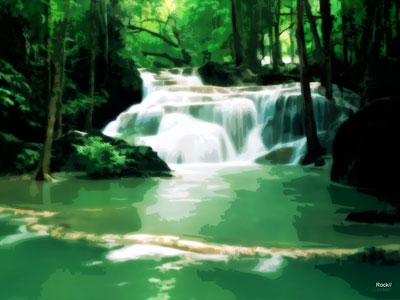
You'll notice that the Photo-Manipulation really brings out the color in an image, this enhances its appearance and provides a great effect.
Example Result