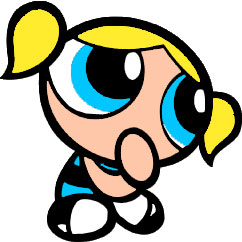
In this tutorial we'll figure out how to increase the quality of those low quality cartoon pictures.
Step 1
Once you have found a cartoon picture you want to change the quality to, open it in Photoshop.
I've chosen a Power Puff Girl for an example.
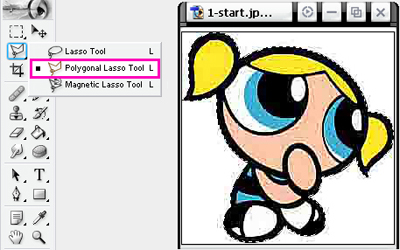
When you have it open, chose the Polygonal Lasso Tool or the normal Lasso Tool, if you think you've got a steady hand, and select the out side edges of the cartoon.
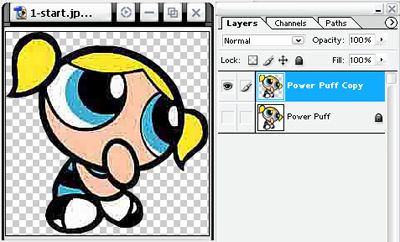
Then go Edit >> Copy(Ctrl+C) and go Edit >> Paste(Ctrl+V). You can delete the bottom layer or hide it so you can see what you're doing easier.
Step 2
Now chose a colour, other then the out line, you want to clean up. I'm going to choose yellow for my first colour.
Select the chosen colour with the Magic Wand Tool, Polygonal Lasso Tool or the normal Lasso Tool. Then make a new layer. I'm going to call it “Hair.”
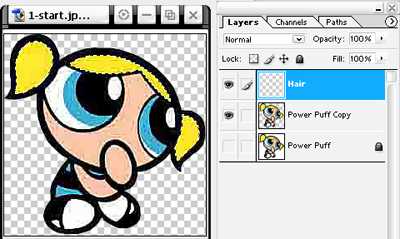
Choose the Eyedropper Tool and find what you think is the correct colour in your current selection. Then go Edit >> Fill “Foreground Color.” Make sure you're on the “Hair” layer.
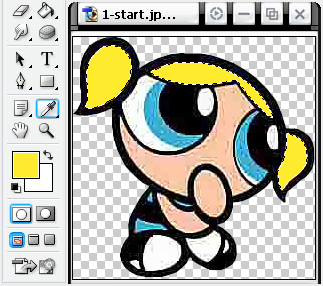
Go Select >> Deselect(Ctrl+D)
Step 3
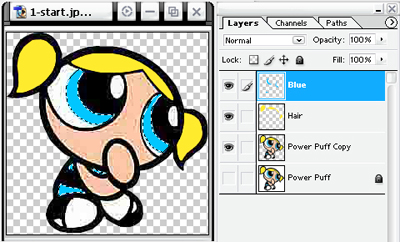
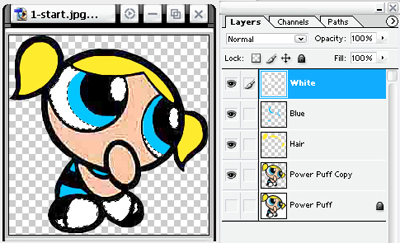
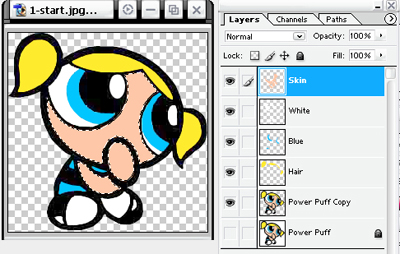
Repeat Step 2 with the other colours other then the outline.
Step 4
Take the bottom layer (the one you cut out the outline) and go Image >> Adjustments >> Hue/Saturation(Ctrl+U). Then set the “Lightness” to -100
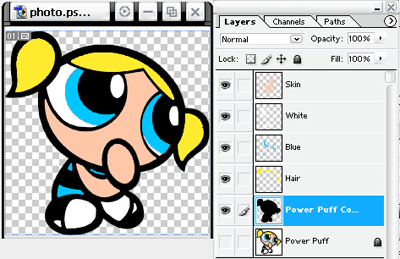
Now you done! Here's my result and comparison: