This tutorial will teach you how to create a subwoofer from scratch.
To begin, create a new image, 550x550.
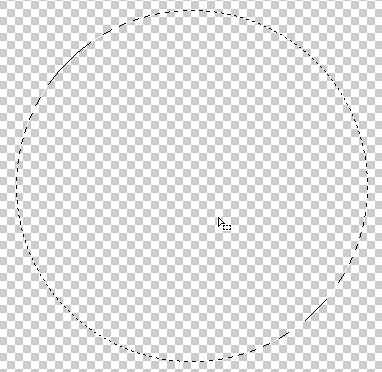
Now, using your Elliptical Marquee Tool, draw a medium sized circle to cover the middle of your canvas.
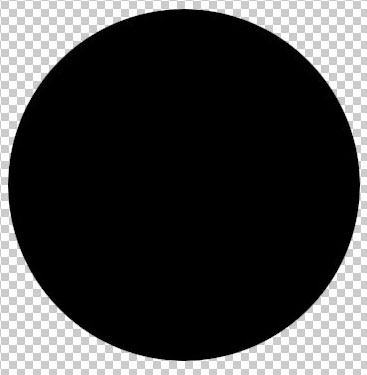
Fill this in with black, and deselect.
Create a new layer.
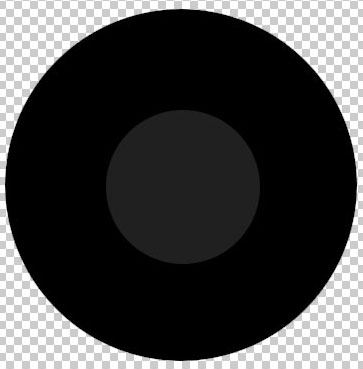
Now draw another circle (about half the size of the first one) in the middle of the black circle.
Fill this in with a slightly lighter color, I used 202020.
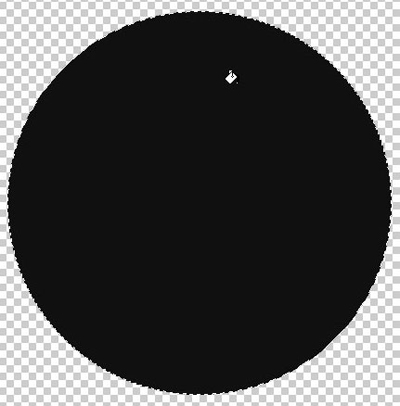
Create another layer, and draw a circle that is a bit bigger than the black one.
Fill this in with a slightly lighter color than black, I used #101010.
Now, still with the top layer selected, CTRL click on the black circle layer.
Now go up to Select>Modify>Contract by 2. Now hit Delete.
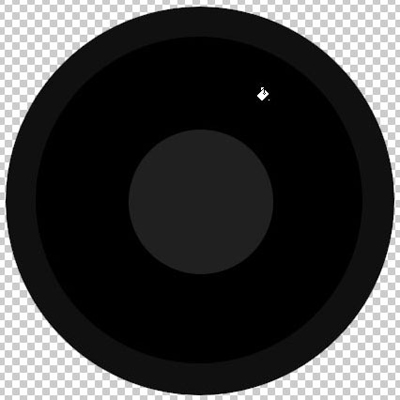
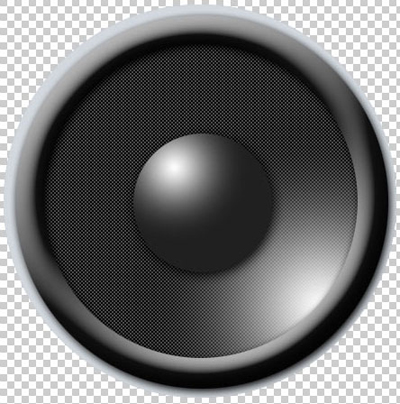
We now have the basic elements of our subwoofer!
Still with Layer 3 selected, goto Blending Options.
Bevel And Emboss:
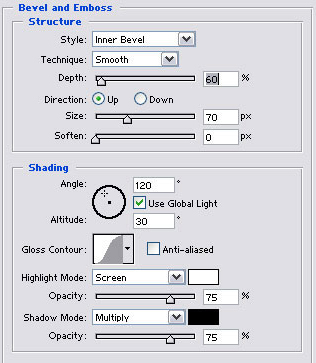
(make sure this is roughly the same. the gloss contour HAS to be Gaussian!)
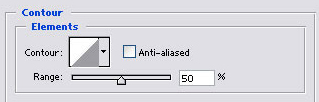
Contour:
Drop Shadow:
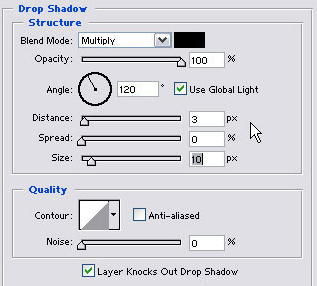
Now we are done the rubber of the subwoofer.
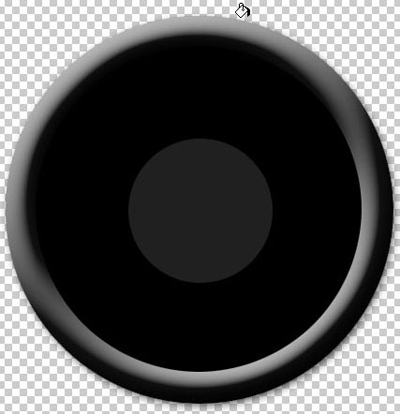
Select layer 2.
Create a new layer above Layer 2.
Select your Gradient Tool, and use a White to Transparent gradient.
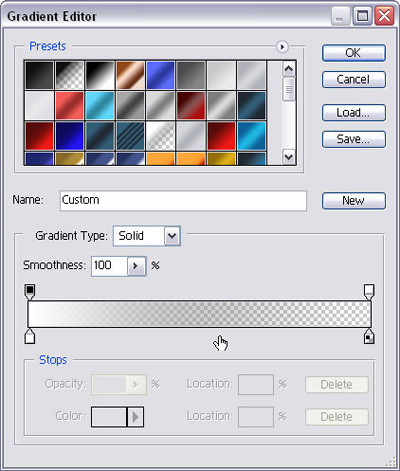
Select Radial Gradient from the Gradient Options.

(Still on Layer 4) CTRL click on Layer 2, then using the Gradient Tool, draw a line from the top left quadrent of the circle.
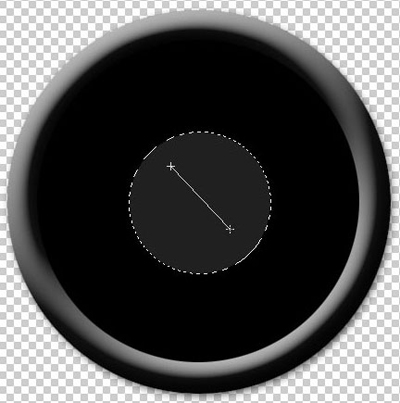
For now, we are done the Bubble part.
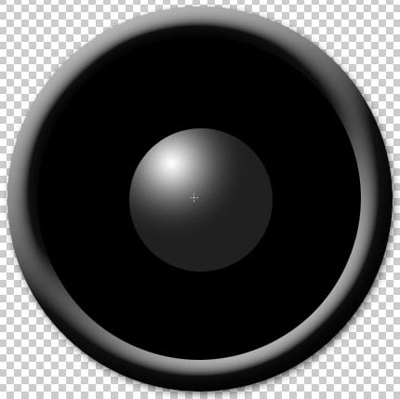
Select Layer 1
Create a new layer above Layer 1.
With your Gradient Tool still selected (all the settings the same) CTRL click on Layer 1, and draw a line from the bottom right quadrent of the circle.
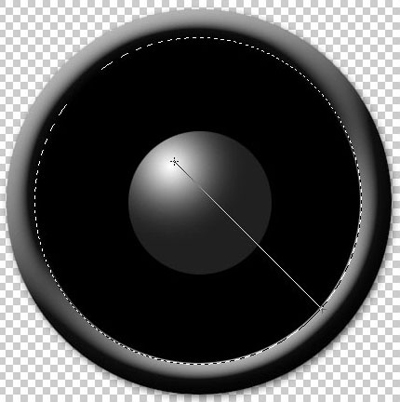
Now, create a new image 4px by 4px.
Zoom in full (1600x)
Make sure your foreground color is black.
Using your Pencil Tool, draw a 2x2 box in either corner of the canvas.

Now switch to another color, I used #4A4A4A.
Draw 2 more boxes in the open areas.

Now go Edit>Define Pattern.
Back to your Subwoofer.
CTRL click AND select Layer 1.
Go Edit>Fill and select your Pattern
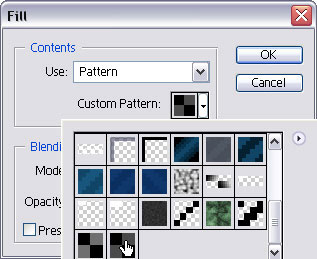
Now our subwoofer looks a little 2D still.
We need to add some effects to the bubble.
Select Layer 2, then do a Drop Shadow on it.
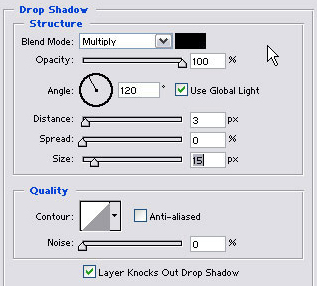
Now that looks better doesn't it?
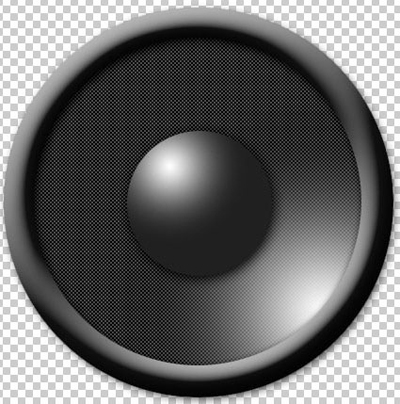
We are almost done.
Create a new layer UNDER Layer 1.
Using the Elliptical Marquee Tool, draw a circle slightly bigger than the Rubber section.
Fill this in with a silvery-looking color, I used #D2D8DE
Now create a new layer under that, and fill it in with any color you want.

Now you're done.
Here's what I got with a few more added features. I added a Logo and a Mounting Plate to mine.