

This tutorial will teach you how to make a vector landscape as shown below.
Final:

Find Image
1. I found my image searchin on google-images after 'city / city panorama / ...'
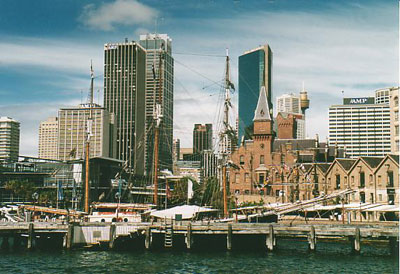
Cutting Out The Buildings..
1. Get the picture in photoshop and then grab Pen Tool
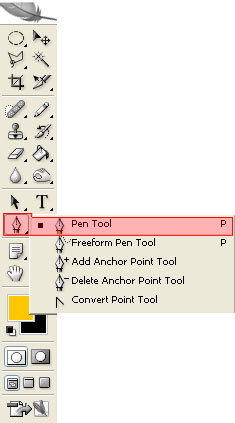
2. Now get this settings:

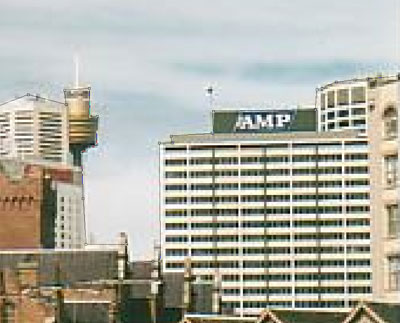
3. Zoom in and cut out the buildings (uneeded stuff you simply don't select)
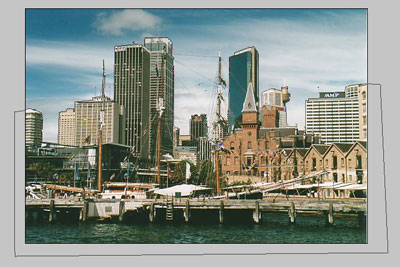
4. Make a new layer and
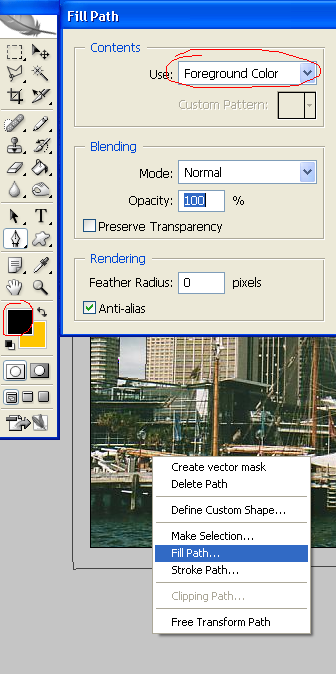
-> Right click with the Pen Tool and click fill-path.
5. Press right then enter (should unselect the path). If not, click on the paths tab in the layers list and deselect it.
6. Hide (or delete) the layer with the picture
7. Give the background a kewl color, i took ffc600
The Retro Touch
1. Make a new layer and get the Polygonal Lasso Tool and make a selection like this
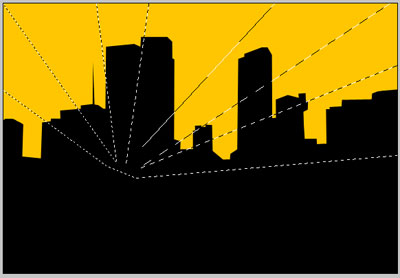
2. Fill it with a darker color:

That's it, it's finished!
