

I am going to show you how to make a really cool abstract signature.
Ex:
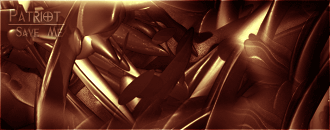
That was one thing I got out of it. Now time to get down to business.
Step 1
File>New
I'm, going to make mine 320x100 since you are going to need a somewhat small space to do this on.
Set the Contents to White.
And to get started with your colors, press D to reset your colors.

Step 2
First Scroll Down to the end of the tutorial to download the brushes I used.
Now for the brushing. I attached the brushes I used. They are called Abstractset2, I got them from deviantart. They are for PS7 and up.
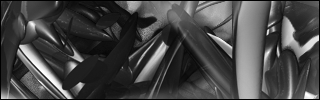
You wont need to brush too much, but like I said earlier it depends on your canvas size. Now, take a brush from the set I gave you and lightly brush. You will only need to do this 2 or 3 times depending on how big the actual brush is. You will not need to do any layering, just brush lightly.
Step 3
Now time for some coloring, adjustments and to make it look 100 times better.
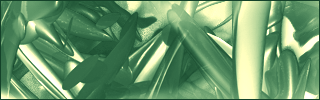
Go to Layer>New Adjustment Layer>Brightness/Contrast
Set it to:
Brightness:+18
Contrast:-9
Now You can use whatever colors you want, but here's is the colors that I am doing.
Go to Layer>New Adjustment Layer> Color Balance
Midtones: -71 +19 0
Shadows: 0 0 0
Highlights: 0 0 -76 to give it a goldish tint
Step 4
Now to add text and a border.
For the text I am going to use a text Called Phrixus. I like this one because the Os look like crosshairs.
But you can download them here
So type in your text or whatever you want and have these settings:
Regular 20pt smooth
Also have your font be white, you may not be able to see it all that well right now, but you will.
Right click on the font layer, over in the little layer box. And set it to these settings:
Blending Options:Default------Soft Light
Drop Shadow-----Angle:60
Distance: 1
Stroke-------Size: 1
Opacity: 40
Color: 000000
Now for the border!
Make a new layer (Ctrl, Shift, N)
Select all of your canvas (Ctrl, A)
Have any marquee tool selected and right click on your canvas.
A new box should come up, and go down and click on stroke.
Have it set to:
Width:1
Color: FFFFFF
Location: Inside
Then Click ok, and again, go to the little layers box on the side, and set the border layer to soft light.
And for my final result......
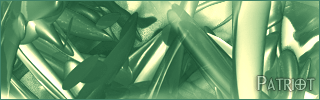
It may not be the best outcome (I like the gold one at the top better...) but I hope I have taught you to do a pretty cool abstract signature. Thanks, hope you enjoyed.
You can download the brush set used in this tutorial from here.
