

This is a simple easy tutorial for Photoshop beginners showing a method of getting text to look like it is on a surface, in this example a road.
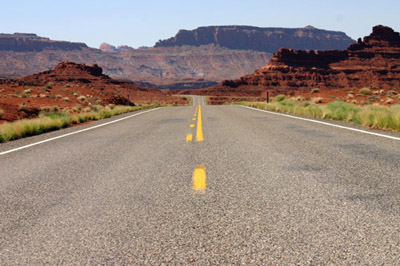
1. Open the picture you would like to add your text to. I used this one.
2. Using the Horizontal Type Tool, type what you want to go on the road I also added an arrow.
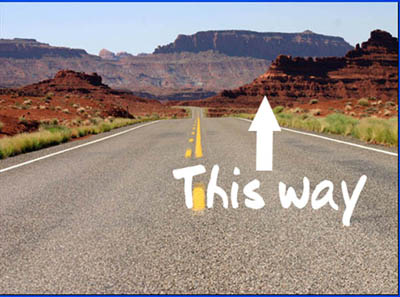
Click Edit > Free transform then keep ctrl down and move the text until you get something like in the pic.
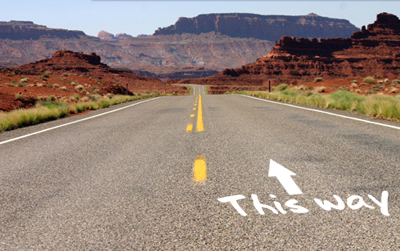
If you want you could also change the opacity of the next and experiment with all the different layer types and it even adds a nice effect when you apply a white foreground to transparent gradient to the text layer.
