


Step 1
Save the next picture on your computer:

Step 2
Open a new document in Adobe ImageReady having the dimensions: 468x60 pixels.
Drag and drop your picture in the ImageReady document like this:

Step 3
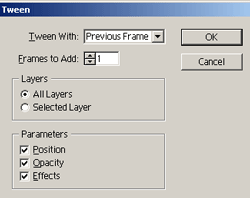
Open the window "animation" (Window > Animation) and insert a new frame for your animation using Tween Animation Frame with the next settings:

Step 4
In the new frame move the picture like in the next image:

Step 5
Insert a new frame by using Duplicate Current Frame:

Move the picture again, and then create a new frame in your Animation Tab and move again your picture. The result should be this:

On the last frame (7) move down your picture:

Step 6
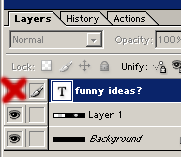
In the first frame use the Text Tool to add a text on your stage. On the frames 4, 5, 6 and 7 remove your text using the Layers Tab like here:
Step 7
Export your picture File > Save Optimized As and you got simple banner animation:

