Open a new document 160 px X 300 px and fill with #F0EEDC.
Create a new layer and with the "Rectangular Marquee Tool" draw a rectangle at the base of the stage.
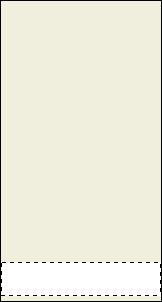
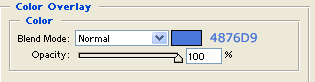
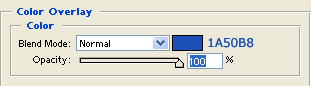
Fill with White (#FFFFFF), and then, open the blending option panel (
 ) and set:
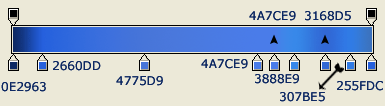
Create now a new layer.
Go to "Select - All" and then on "Edit - Stroke".
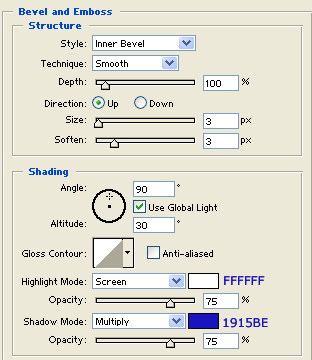
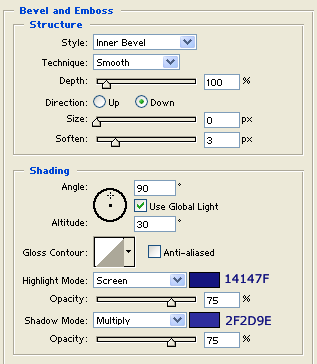
Set a 10 px black (#000000) stroke and hit "Ok", then open the blending options panel and set:
Get the "Rectangle Tool" and without create a new layer draw a rectangle on the top of the stage.
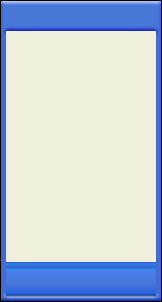
This rectangle will take the same option of the frame.
Well, create now a new layer, and get the Rounded Rectangle Tool (
 ).
).
Set the radius to 2 and draw a little rectangle in the footer:
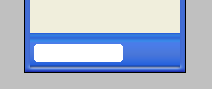
Open the blending options panel and set:
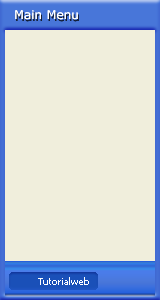
Well the main part of our "xpized box" is done, just add in the header some text with a white "Verdana" fonts with a little Drop Shadow, in the header, and some text with a white "Verdana" fonts (without antialliasing) in the little box in the footer.
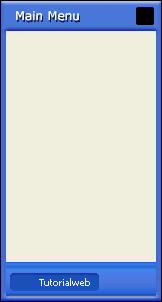
Get the "Rounded Rectangle Tool" with 2px radius and in a new layer draw a little perfect square (holding Shift while you draw).
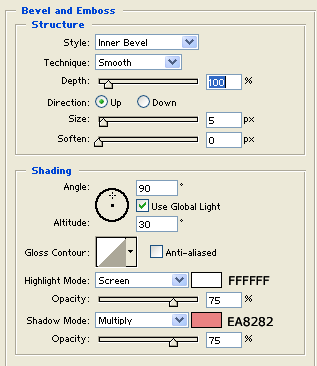
Open the blending option panel and set:
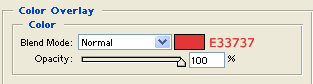
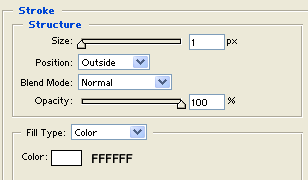
Now duplicate the layer two times and from the blending option panels of the two new layers change the "color overlay" to #596EED.
To get the symbol to insert in the squares, use the "Webdings" fonts.
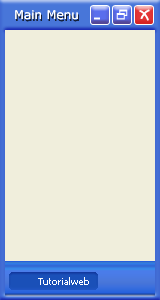
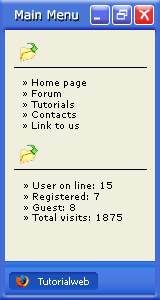
And this is the final result with my customization: