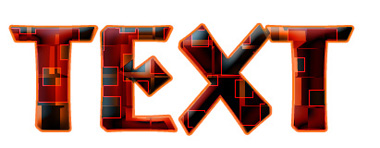
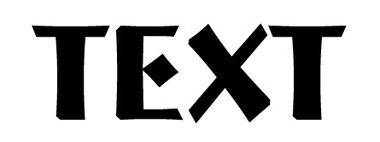
Start by typing your text using a bold font.
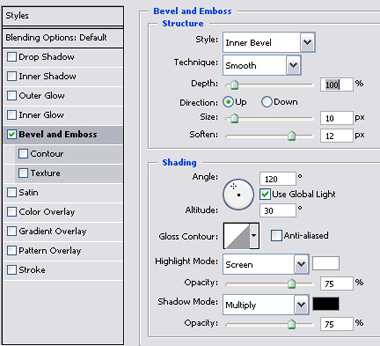
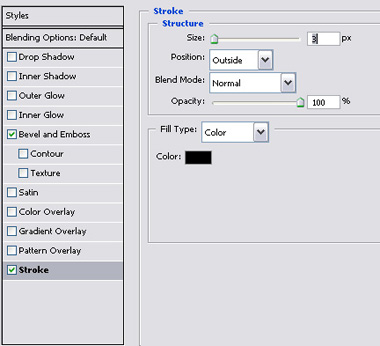
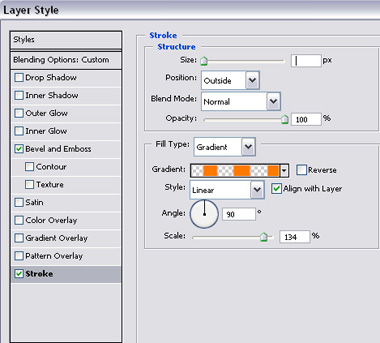
Double click the layer to open layer style window. Apply settings as shown.
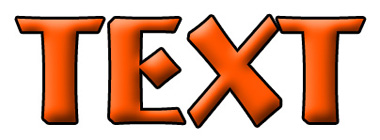
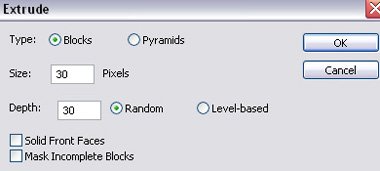
Duplicate the layer. From layer menu select layer style>>create layers. Select and merge all the resulting layers. Select black as background and orange as foreground color. From "Filter" menu select "Stylize>>Extrude". Apply settings as shown.

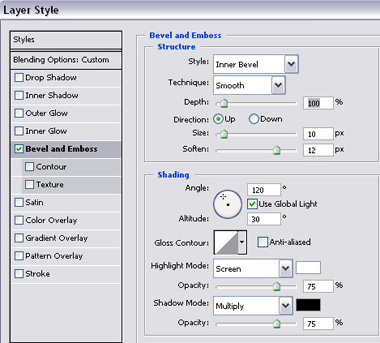
Double click the layer to open layer style window. Apply settings as shown.
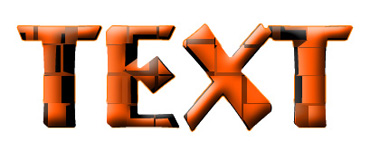
Change the layer mode to "Difference".
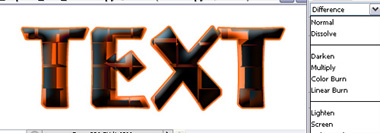
Duplicate the first original text layer. Move this layer above all the layers in layer order in layer palette. Right click the layer and select convert to shape.
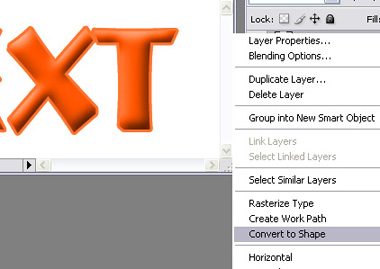
Enable "subtract from shape area" at the top bar. Create some rectangles of random sizes.
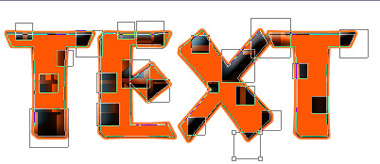
Change the text color to red.
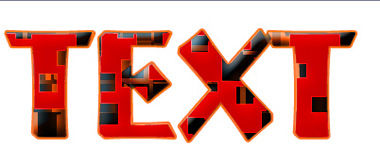
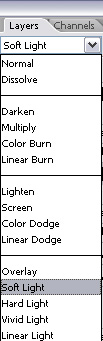
Change the layer mode to "Soft Light".