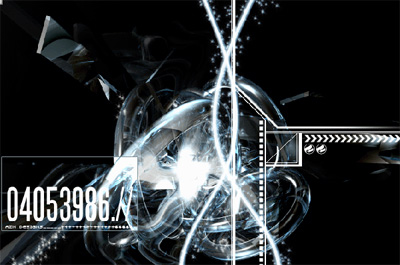
Make cool glowing lines to make a burst effect , good on abstrac pieces..
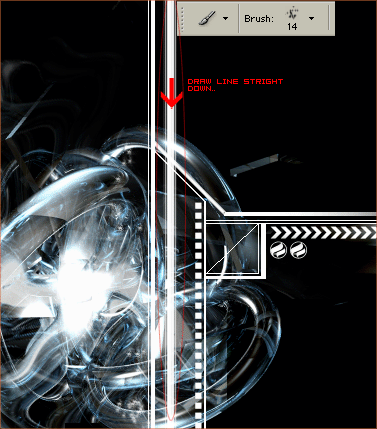
Open up a new image that you want to put the lines on , get the brush that I have selected in the above pixture. Create a new layer and draw a line stright up and down.
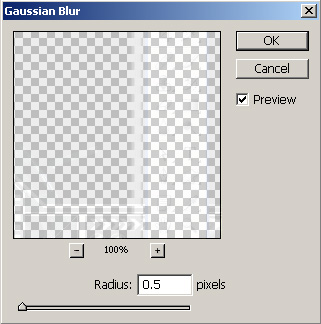
Now go filter blur>>Gaussian Blur and copy these settings.
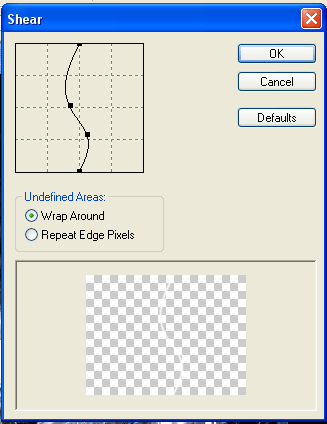
Go to Filter>>Distort>>Shear and make somthing like above.
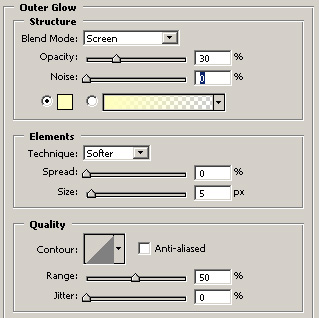
Now copy these setting if you would like a glowy effect, or else you are aloud to skip this step.
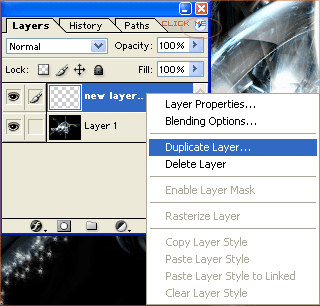
Now go to your layer palete and click on duplicate layer like above.
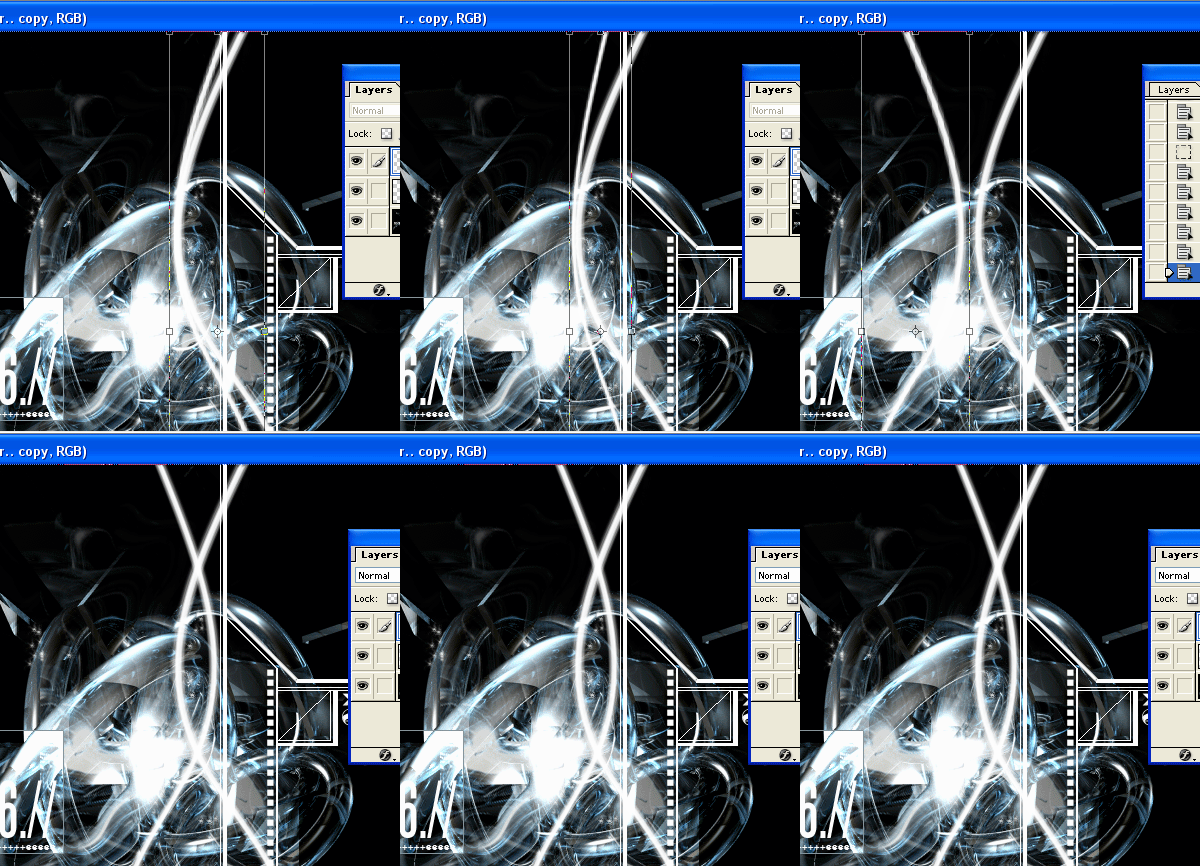
Hit ctrl+T to bring up the free transform. And drag the line over so it is the same exact opposite. Like in the above animated image.
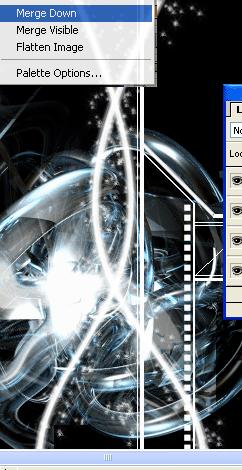
Now merge the two layers together so that later if you would like you can free transform them and rotate it.
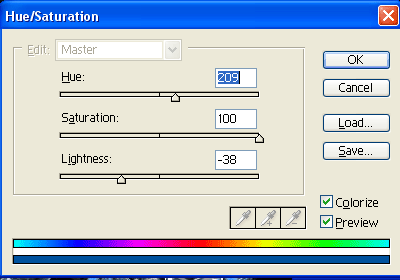
Now if you want another glowing effect Press ctrl+U and copy these settings.
You will then change your layer to the mode "soft light"