Step1:
Create a new image, File > New or (CTRL + N) Length (800) and Width (600). Change the Background color to black (#000000).
Step2:
Create a new layer, Layer>New>Layer (Shift+ctrl+N) Click on the Pencil Tool and enter the setting below.

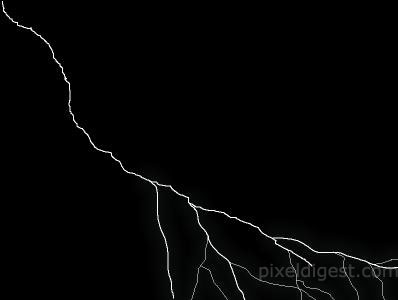
Set the color of the pencil to white (#FFFFFF). With the brush size set to 3 pixels, draw a gagged line going from the upper left hand corner going down. Keep changing the size of the line as you go from one end to the other. From 3 pixel to 2 pixel then to 1 pixels. You will get something like I have below.

Step3:
Create a new layer, (Shift+Ctrl+N) Change your pencil size to 1 pixel, and draw the branching sparks coming off the main lightning strike. Like I have below, it does not have to be exactly like I have.
Step4:
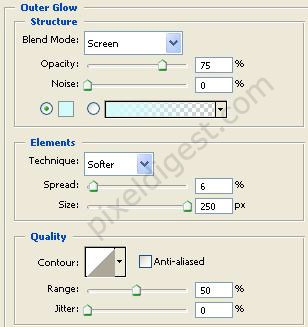
Right click on your first layer with the main lightning, and click Blending Options and add the Outer Glow setting I have below. The Outer Glow shadow color is #e0fbfe
Step5:
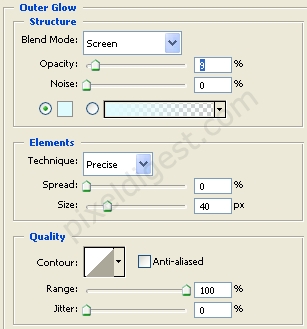
Right click on the layer with the lightning branching off and add the Outer Glow setting below.
Step6:
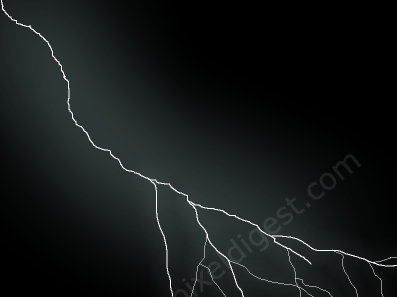
That is it. If you did everything right you should have something like I have below.