Step1:
Create a new image, File> New or Ctrl+N. Set the Width (800) and Height (600). Change the back ground color to white #FFFFFF
Step2:
Press Shift+Ctrl+N to create a new layer, Click on the Rounded Rectangle Tool (U)
 and enter the setting below.

Right click on the layer that your pill button is on and click Blending Options and enter the setting below.
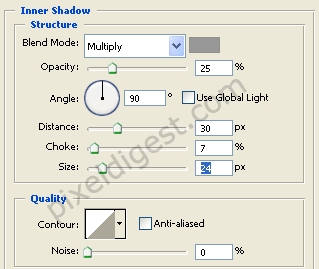
Inner Shadow
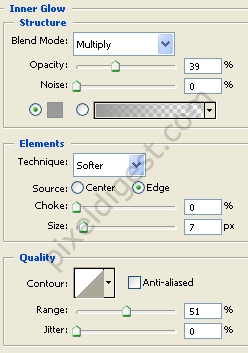
Inner Glow
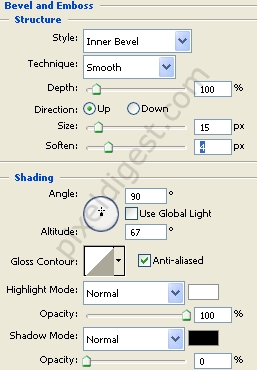
Bevel and Emboss
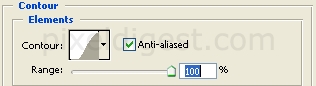
Contour
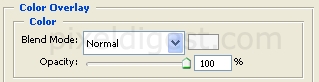
Color Overlay
Blend Mode color #f7f7f7
After entering the Color Overlay setting click on ok to accept the setting. You should have something like I have below.

Now click on the Type Tool
 and type something on to the button. If you reduce the Opacity to 50% or less on your text layer what ever you type onto your pill button will look like its inside the button.
Step3:
That's it.




