


Step 1:
Create a new image with the dimension 800 x 600. Change the background color to white. Press ALT+CTRL+0 to view the actual pixel of your work area. Create a new layer, Layer > New > Layer... (Shift+Ctrl+N). Now click on the Rounded Rectangular Tool
 using the setting below create the rectangle shown in the image.


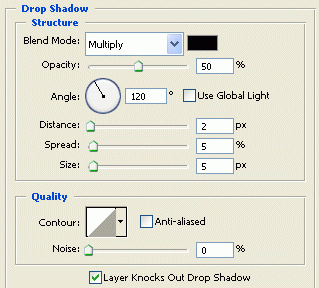
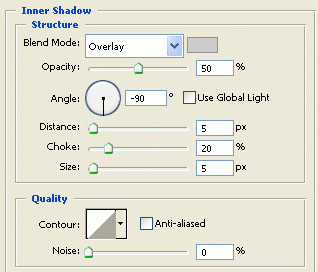
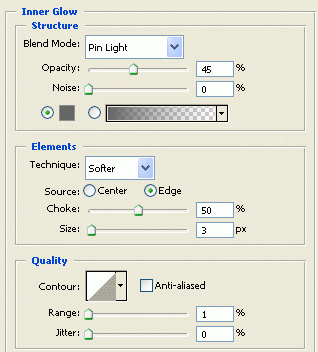
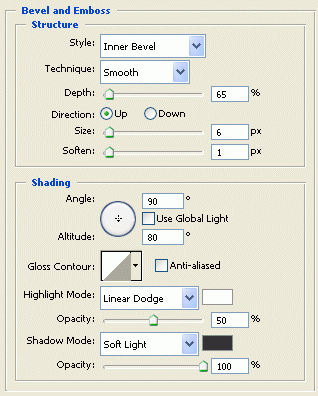
Now right click on the layer, click Blending Options, and add the settings below.
Drop Shadow
Inner Shadow
Inner Glow
Bevel and Emboss
Gradient Overlay
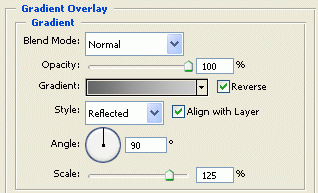
Stroke
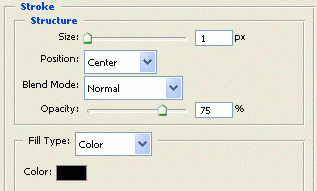
After that, click ok to add the settings. If you are having a hard time adding the setting above, click here to download the Gradient. With that added, your rectangle should look like the image below.
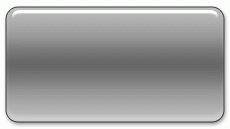
Step 2:
Hold CTRL and click on the rectangular layer to select it as shown below.
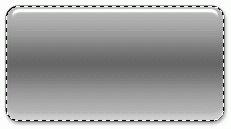
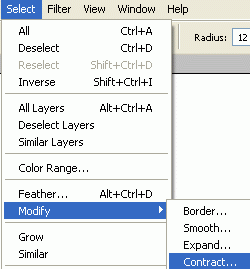
Now click Select > Modify > Contract... and change the contract by to 9
Create a new layer, Layer > New > Layer... (Shift+Ctrl+N). Click on the Gradient Tool
 and using the setting below create a gradient going from the bottom to top onto your new layer.

At this point, your image should look like the screenshot below.
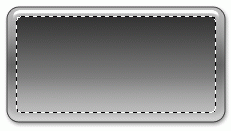
Tip: Still on the same layer click Image > Adjustments > Hue/Saturation click colorize when the window comes and you can change the color of the gradient.
Press CTRL+D to deselect.
Create a new layer, Layer > New > Layer... (Shift+Ctrl+N). Now click on the Rounded Rectangular Tool
using the setting below create the rectangle shown in the image and place the rectangle on the upper left hand side as in the image.

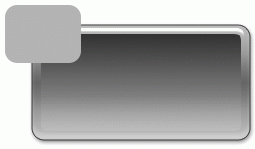
Now we need to add the Blending Option to the layer you just created. Right click on the small rectangular layer and click Blending Options
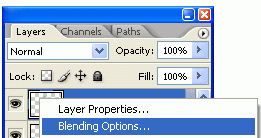
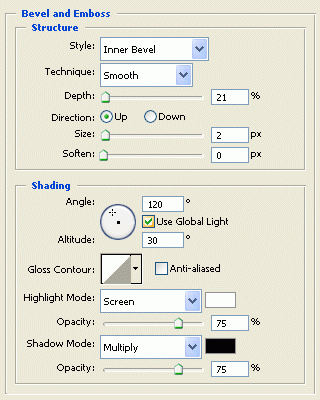
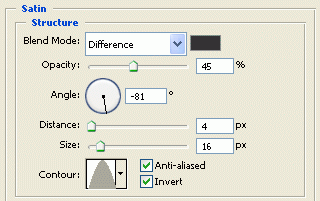
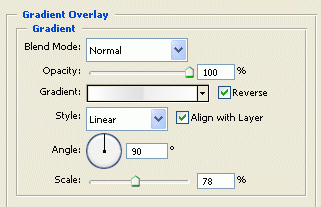
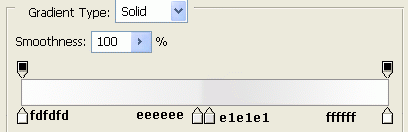
In addition, add the setting below.
Bevel and Emboss
Satin
Gradient Overlay
Gradient Overlay (gradient)
Stroke
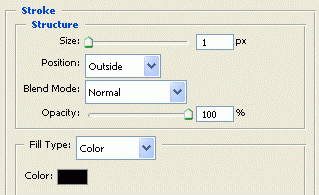
Click ok to add the setting. At this point, your image should look like the screenshot below.
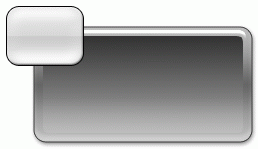
Step 3:
At this point, we will add the screws seen in the image above. Create a new layer, Layer > New > Layer... (Shift+Ctrl+N). Click on the Elliptical Marquee Tool
 . Using the setting below create a circle and place it at one of the ends of the small rectangle.

At this point, your image should look like the screenshot below.
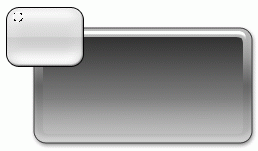
Fill your selection (The circle) With a gray color: b3b3b3, we need to create the slice in the screw head. Click on the Zoom Tool and zoom into your image so you can have a better view of what you need to do. As shown below.
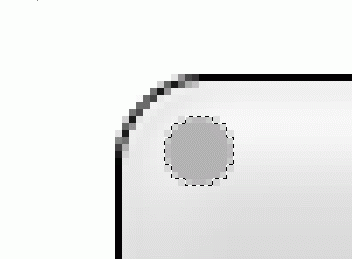
Now click on the Polygonal Lasso Tool
 Press CTRL+D to deselect your selection. Using the Polygonal Lasso Tool select a tin line as shown in the image below and press the delete key on your keyboard.
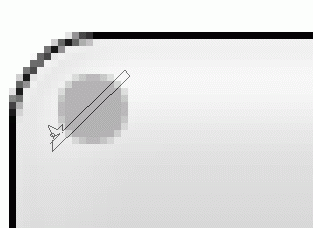
Press ALT+CTRL+0 to view the actual pixel of your work area. Right click on the screw layer, click Blending Options and add the setting below.
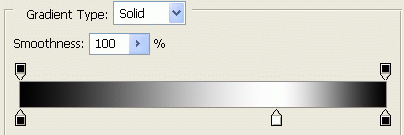
Gradient Overlay
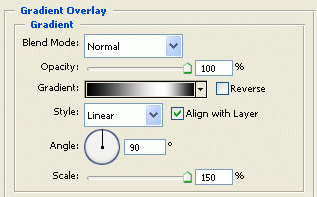
Gradient Overlay (Gradient)
Stroke
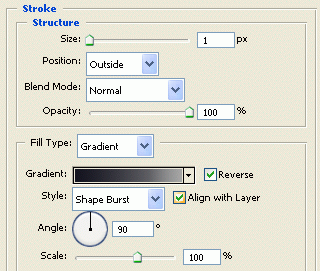
Stroke Gradient
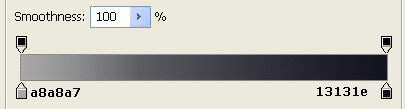
After that, click Ok, to add the settings. At this point, your image should look like the screenshot below.
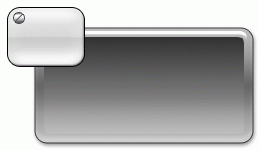
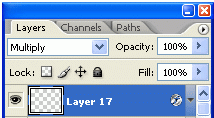
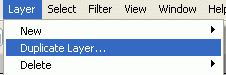
Now duplicate the screw layer and place it at the ends of the small rectangle. To duplicate the layer click to highlight the screw layer and click on Layer > Duplicate Layer...
Highlighted layer
Duplicate Layer
Your content box at this point should look like the image below.
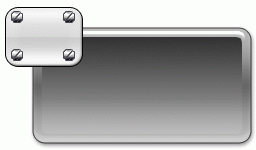
Step 4:
Ok now we will add the wire coming out of the small rectangle. Go back to the main content box layer, and hold CTRL and click on the layer to select it as shown in the image below.
Highlighted Menu box
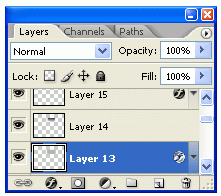
Hold CTRL and Click on highlighted layer
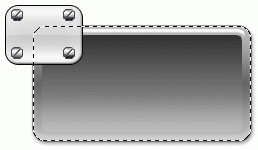
Click on the Rectangular Marquee Tool
 make sure that the Subtract From selection
 is selected. Use the Rectangular Marquee Tool and subtract from the selection as shown in the image below.
How to use Rectangular Marquee tool
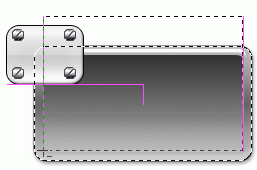
Subtract from selection result
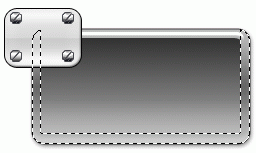
Create a new layer, Layer > New > Layer... (Shift+Ctrl+N). Make sure this layer is under the main content box layer, so the wire is behind the box. Using the Arrows on your key board move the selection to the Left and down so it look like the screenshot below.
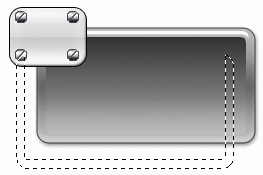
Fill the selection with a gray color: b3b3b3, and select the layer it should look like the picture below.
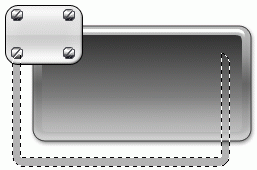
Now we need to add a blending Option to this layer. Right Click on the wire layer, Blending Options, and add the setting below.
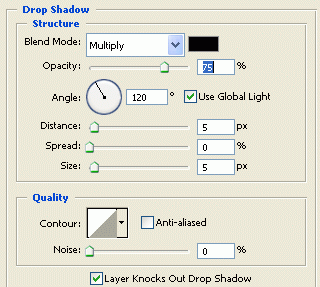
Drop Shadow
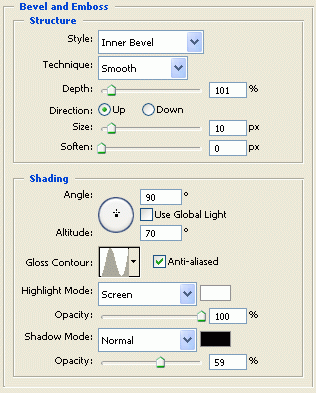
Bevel and Emboss
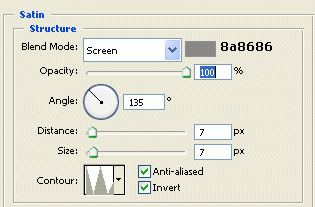
Satin
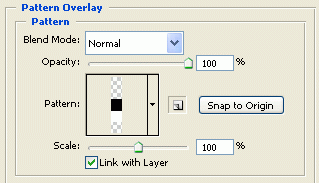
Pattern Overlay
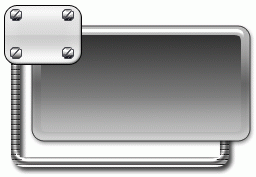
Your image should look like what I have below.
This part is a bit confusing so I will try my best to explain it. I need to make the wire at the bottom of the content box to end at the middle, and to add the cuts in the wire. So let us get started.
Hold CTRL and click on the wire layer to select it. As shown in the image below.
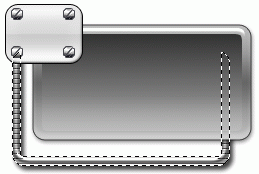
Click on the Rectangular Marquee Tool
make sure that the Subtract From selection
is selected. Use the Rectangular Marquee Tool and subtract from the selection as shown in the image below.
Subtract from selection
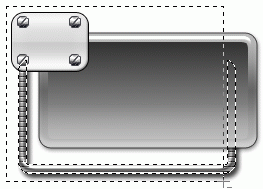
Subtract Result
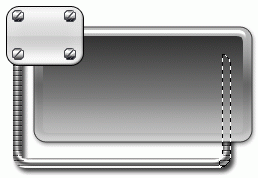
Create a new layer, Layer > New > Layer... (Shift+Ctrl+N) and fill the selection with a gray color: b3b3b3. At this point, you image should look like the screenshot below.
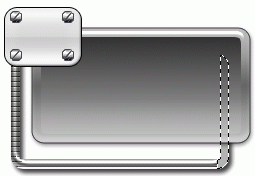
Now using the style, you saved add it to this part of the wire. Now you should be able to move that end of the wire to the middle of the content box. It should look like the image below.
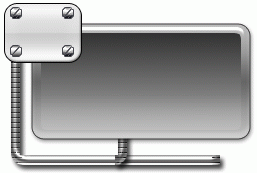
Using the Rectangular Marquee Tool
delete the extra wire. Hold CTRL and click on the wire layer, which should look like the image below.
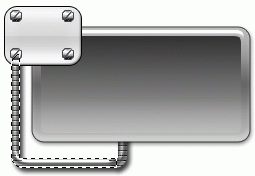
Click on the Rectangular Marquee Tool
make sure that the Subtract From selection
is selected. Use the Rectangular Marquee Tool and subtract from the selection to get the effect below.
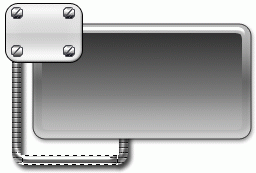
Create a new layer, Layer > New > Layer... (Shift+Ctrl+N) and fill the selection with a gray color: b3b3b3 as shown below.
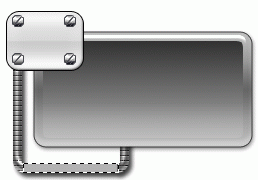
Click here to download the gradient to use on the wire. With the gradient added, you should have something like I have below.
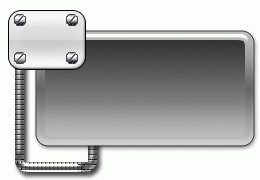
Well that is it. Hope it came out to what you expected.
