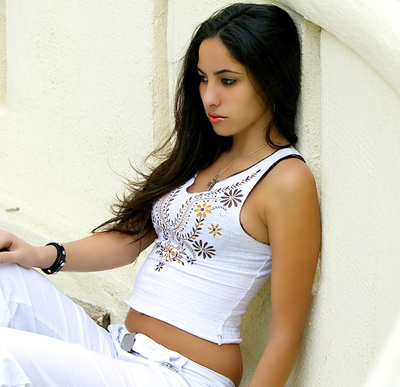
Learn how to use photox instead of botox on a photo to give it that fake glamour look.
Step 1
Open up an image that hasn't been retouched yet. Mine was a model from SportsbyBrooks.com.
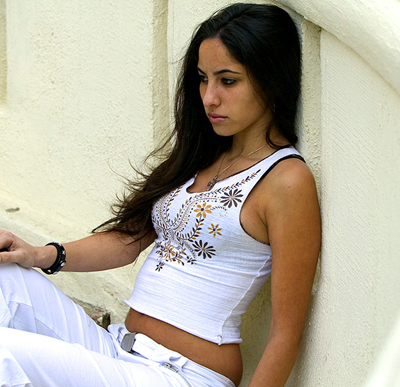
Step 2
Use the HealingBrush-Tool to edit small dots or blemishes by holding Alt and selecting a piece of clean skin and then just brush over the blemish and fix it;
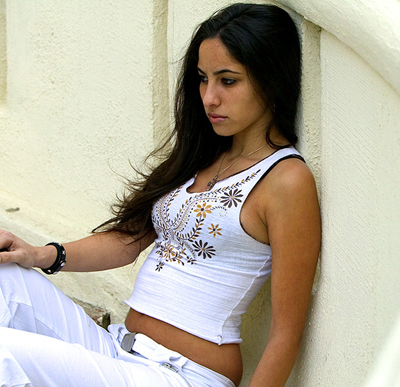
Step 3
Once that is covered, duplicate the layer with Ctrl+J, then go to Filter>Noise>Dust & Scratches and set the radius to 9 and the threshold to 0;

Step 4
Then go to Filter>Blur>Gaussian Blur and choose something between 2 and 5

Step 5
Then either select all the skin and remove everything that isn't skin or mask the whole layer, make the mask black and use a white brush to re-paint the skin.
It's really whatever you think works better;
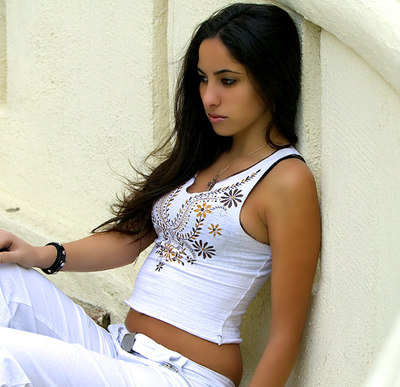
Step 6
The lips are a little vague so select the lips and duplicate them by pressing Ctrl+J. Then set the blending-mode to lighten;

Step 7
Next, merge all layers by pressing Ctrl+Shift+E and then press Ctrl+J to duplicate this layer and set the blending-mode to screen, then lower the opacity to your liking...