1. Create a new image 700x160 with transparent background. Rename this layer as "background"
2. Fill the background with #adacac.

3. Create a new layer, rename this layer as "header", make a selection and fill it with any color.
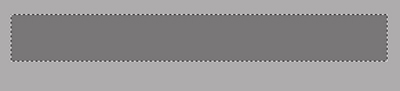
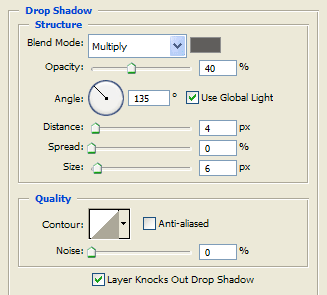
4. Right click the header layer and choose Blending Options, use these settings:
Drop shadow:
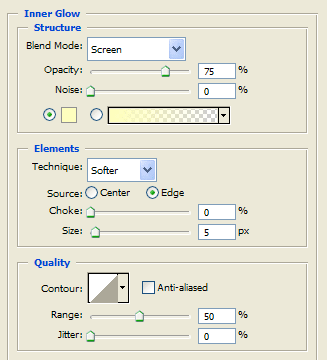
Inner glow:
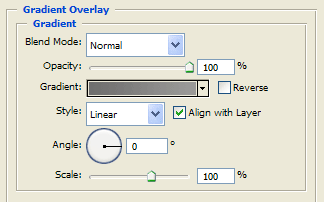
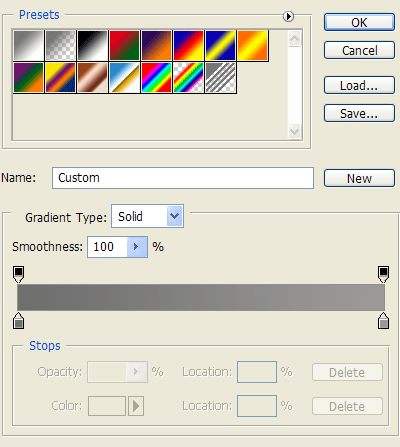
Gradient overlay: use these colors #6f6f6e -> #9b9a99
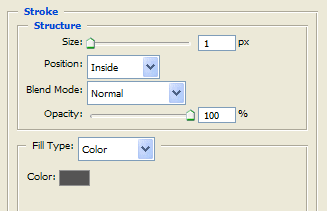
Stroke:
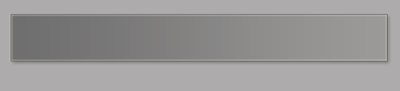
The result is:
5. Create a new layer, rename this layer as "menu".
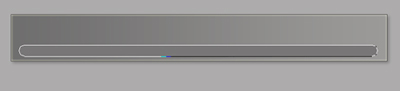
6. Select the Rounded Rectangle Tool and draw a shape similar to this:
7. Right click the menu layer and choose Rasterize Layer.
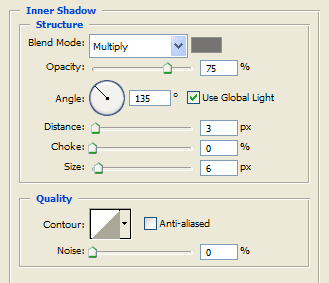
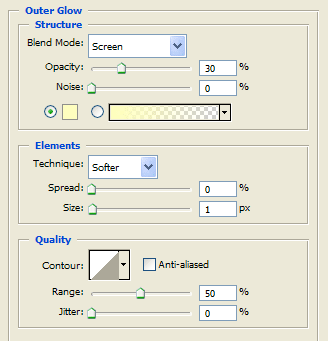
8. Right click the menu layer and choose Blending Options, use these settings:
Inner Shadow:
Outer Glow:
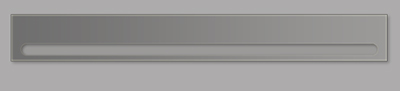
The result is:
9. Finally add some text for the links, a text title, an image and you are finished.
The final result is: