


Open a new file with 450x320 px and 300 dpi. Paint it with the following color 900000.

Having the next instrument
 , insert a figure with the shown parameters next image.

Blending Options-Gradient Overlay
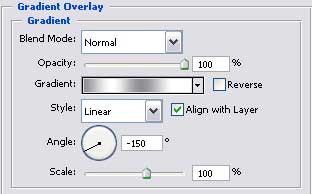
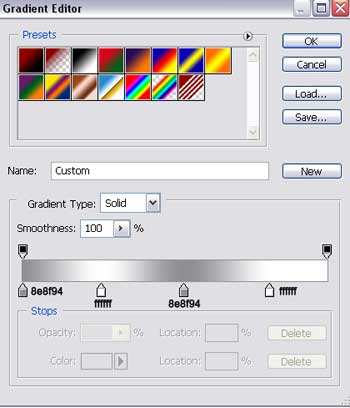
Gradient's parameters.
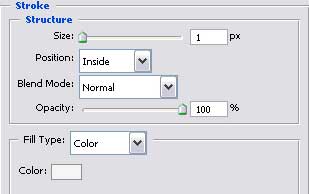
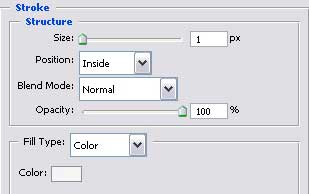
Blending Options-Stroke
Take now the instrument
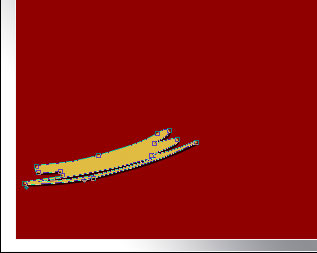
 and picture a figure colored in E0BC41 and the sizes from below.
Blending Options-Drop Shadow
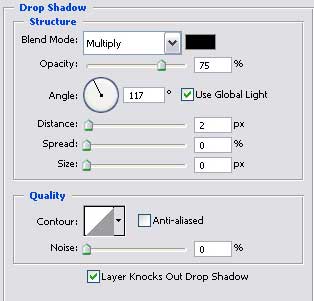
Taking the same instrument and the same color, it's possible to represent another figure with the following sizes.
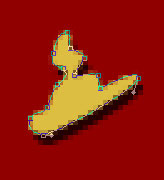

Blending Options-Drop Shadow
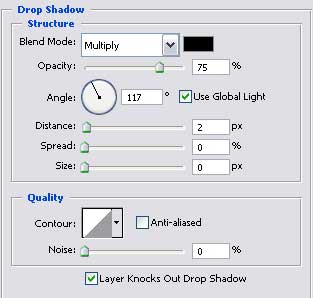
The previous instrument may be helpful in representing another element which must be colored in the same color as we did with the last figure.

Blending Options-Drop Shadow
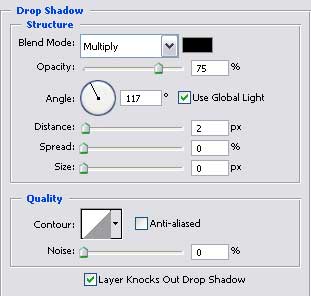
Take the same instrument and the same color to insert another figure with the indicated parameters next step.
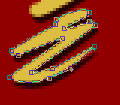

Blending Options-Drop Shadow
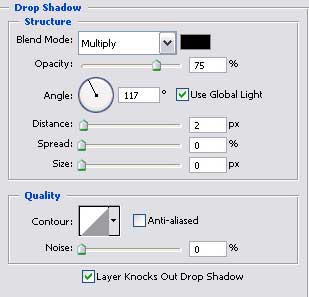
Use the next instrument
to picture one more element of the previous color with the shown sizes next step.
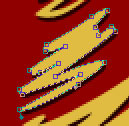

Blending Options-Drop Shadow
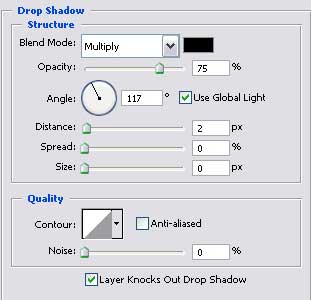
Make the same way several more figures of the same color and the same Blending Options-Drop Shadow

Apply the following tool
to represent another element with the sizes from next step.


Blending Options-Gradient Overlay
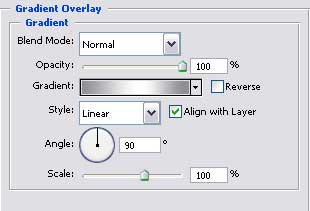
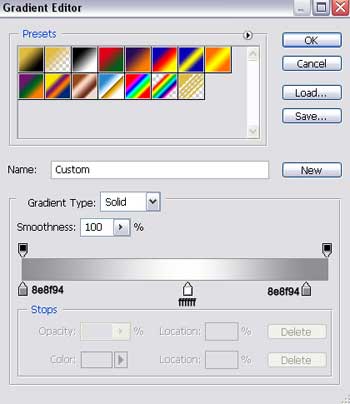
Gradient's parameters.
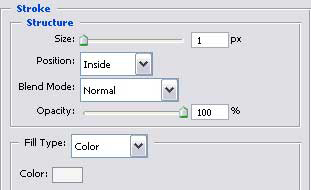
Blending Options-Stroke
Take the known instrument to draw the next element that must have the next parameters.

Blending Options-Gradient Overlay
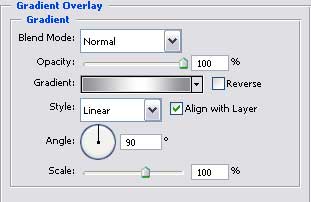
Gradient's parameters.
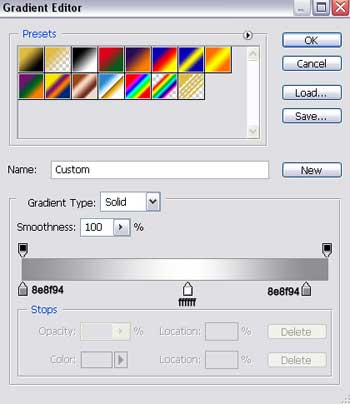
Blending Options-Stroke
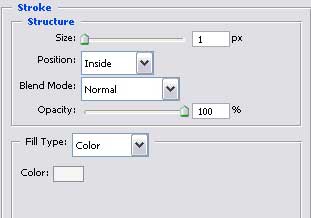
One more element represented by the same instrument. It must have the next sizes.

Blending Options-Gradient Overlay
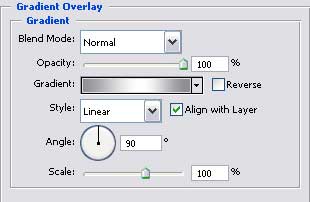
Gradient's parameters.
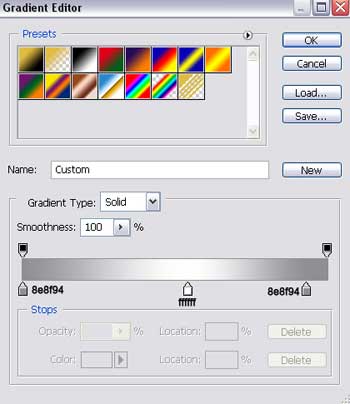
Blending Options-Stroke
The same instrument may be helpful in representing another element that must look exactly like the next one.

Blending Options-Gradient Overlay
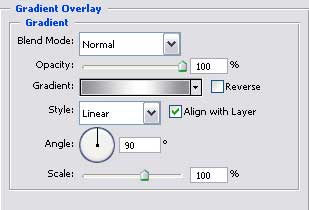
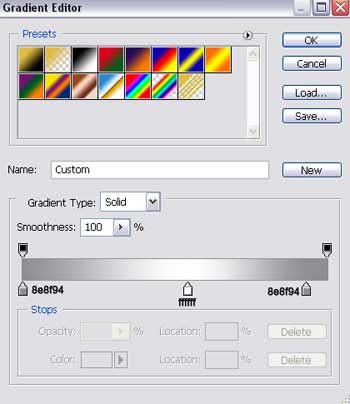
Gradient's parameters.
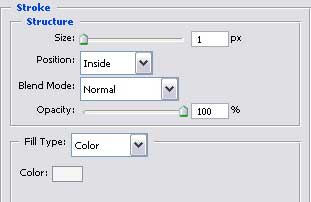
Blending Options-Stroke
Copy the new made layer and make use of Free Transform function to minimize it and place all that you see like in the picture below.

Take the next tool
 then to choose form the next table an appropriate cliché.
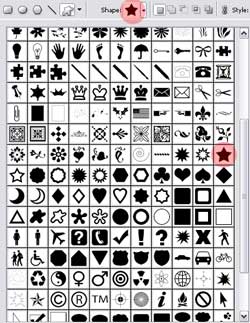
It will help us to represent several small stars painted in white

Take the same instrument to continue representing the stars that must be colored with a different color of the last ones - 600100.

The final result!
