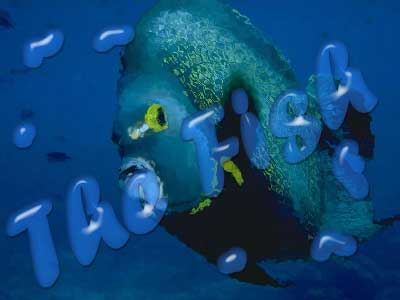
Way 1.
Step 1.
Open your photo (or create any background). Apply Filter > Distort > Glass with the following settings: Distortion->1, Smoothness->3, Texture->Frosted. Go to channels palette and create a new channel. Then choose the Brush Tool and draw several future "drops". Choose the Type Tool and type a text, then apply Edit > Free Transform and turn a text in the angle you wish. Then press a "Load Selection" button in the bottom of the channels palette.
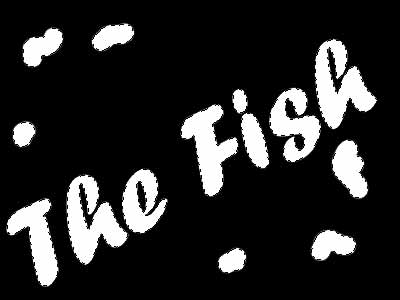
Step 2.
Now go to layers palette. Create a new layer. Apply Select > Modify > Expand (Expand by 1px). Set the foreground color as blue and apply Edit > Fill... to fill a new layer (Contents Use: foreground color).
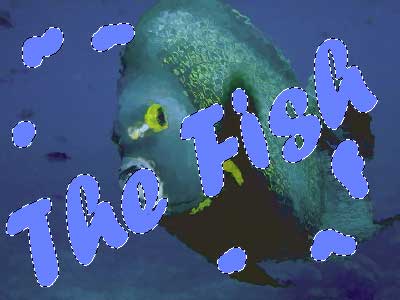
Step 3.
Apply Layer -> Layer Style and make following requirements:
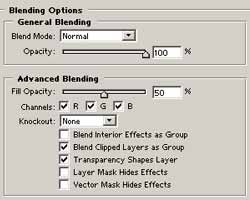
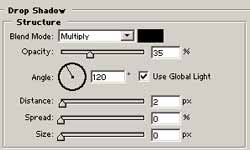
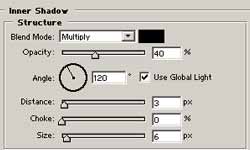
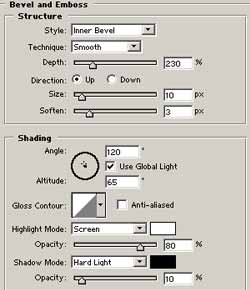
Apply Select > Deselect.
Way 2.
Step 1.
Open your photo (or create any background). Apply Filter > Distort > Glass with the following settings: Distortion->1, Smoothness->3, Texture->Frosted. Set the foreground color as blue. Choose the Type Tool and type a text, then apply Edit > Free Transform and turn a text in the angle you wish. Then Rasterize this layer. Then choose the Brush Tool and draw several future "drops". Now choose the Magic Wand Tool and make a selection of the drops and the text (holding Shift).
Step 2.
Repeat step 3.
And that's it.