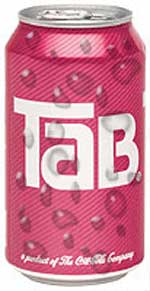
Step 1.
Open the image with tin of soft drink in it.
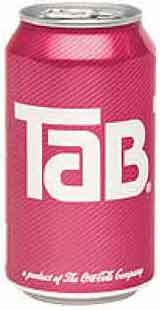
Step 2.
Now creates small ellipses in our image with the Ellipse Tool. They are the future form of the drops.
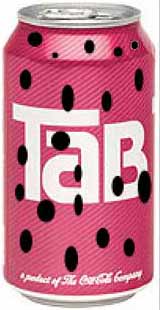
Step 3.
Choose the Direct Selection Tool and give each ellipse the form of water drops.
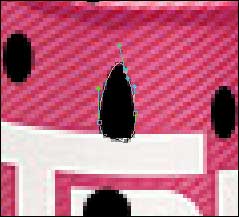
Step 4.
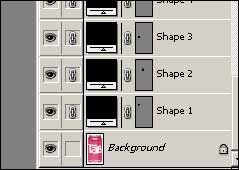
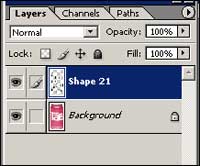
Now, you have to press "link" in each layer, turn off the background and combine all layers (Ctrl+E), and then turn to the background.
Step 5.
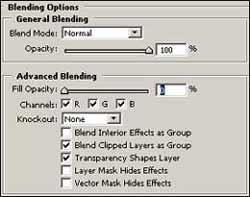
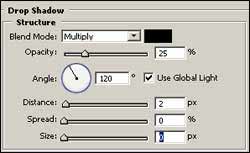
Apply Layer -> Layer Style and make following requirements:
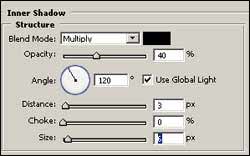
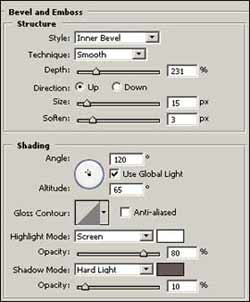
And that's it. The water drops effect is ready.