


It's simple to convert a square picture to a round picture by simply making a circular selection and adding a mask. However, how about converting a square image to a sphere? Here's a trick to keep things looking good.
1. Open a square image in Photoshop or crop an image to a square. (If the image has layers, flatten or merge the layers to apply the effect to the image as a whole.)
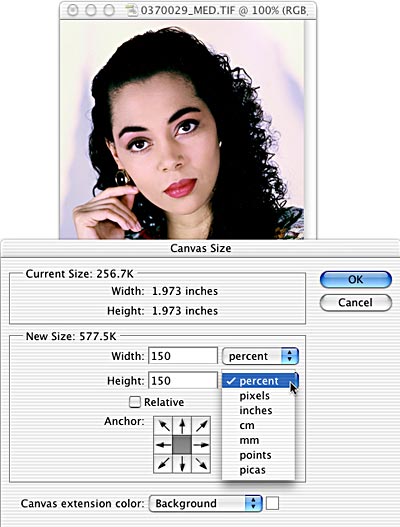
2. Image> Canvas Size. Increase the size of the canvas to 150%. (We're using PhotoSpin's image #0370029.)
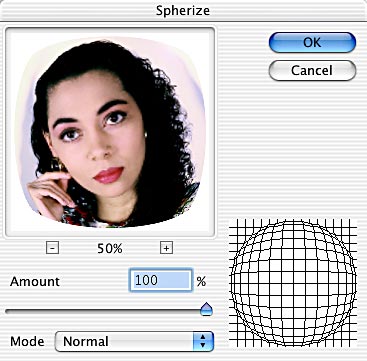
3. Filter> Distort> Spherize. Drag the slider all the way to the right and leave the pop-up menu set to Normal.
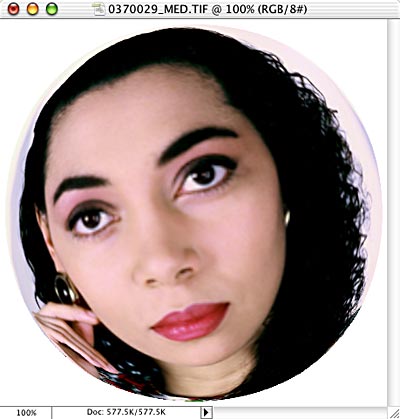
4. The resulting image isn't completely round, so use the keyboard shortcut Command-F (Mac) or Control-F (Windows) to apply the filter again with the same settings.
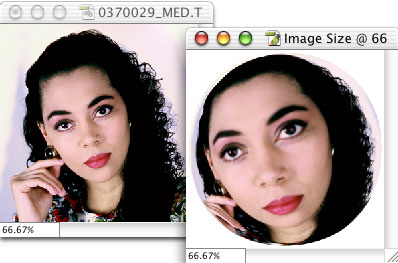
5. Image> Image Size can reduce your image to the original size. Check the Constrain Proportions and Resample boxes. In the upper part of the dialog box, switch from Pixels to Percent. Enter 66.67% and click OK. Here's a comparison of the before and after images.
 Pete
Bauer is the Help Desk Director for NAPP, as well
as a Contributing Writer for Photoshop User and Mac Design
magazines. His books include "Special Edition Using
Adobe Photoshop 7" (with Jeff Foster), "Special
Edition Using Adobe Illustrator 10," "Sams Teach
Yourself Adobe Illustrator 10 in 24 Hours" (with Mordy
Golding), and "Special Edition Using Adobe Illustrator
9." Pete writes documentation for a variety of computer
graphics related products, as well as testing software
for a number of companies. As a computer graphics efficiency
consultant, Pete specializes in customized training programs.
He is based in Columbus, Ohio, and can be contacted via
Pete
Bauer is the Help Desk Director for NAPP, as well
as a Contributing Writer for Photoshop User and Mac Design
magazines. His books include "Special Edition Using
Adobe Photoshop 7" (with Jeff Foster), "Special
Edition Using Adobe Illustrator 10," "Sams Teach
Yourself Adobe Illustrator 10 in 24 Hours" (with Mordy
Golding), and "Special Edition Using Adobe Illustrator
9." Pete writes documentation for a variety of computer
graphics related products, as well as testing software
for a number of companies. As a computer graphics efficiency
consultant, Pete specializes in customized training programs.
He is based in Columbus, Ohio, and can be contacted via
