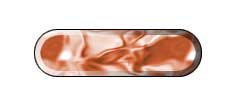
Step 1.
Create a new 250X100 pixels document with the white background. Choose the Elliptical Marquee Tool and make a round selection (holding Shift).

Step 2.
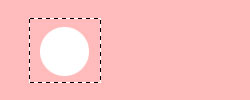
Press a Quick Mask Mode button (or "Q"). Choose the Rectangular Marquee Tool and make a selection like shown in the pic.2.
Step 3.
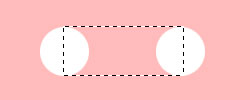
Holding Ctrl+Alt+Shift drag a duplicate to the right. Choose the Rectangular Marquee Tool and make a selection like shown in the pic.3. Press DEL to move away a selection content.
Step 4.
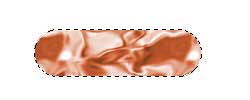
Now press a Standard Mode button (or "Q") and save the selection (apply Select > Save Selection). Fill the selection with pattern, texture or color (apply Edit > Fill).
Step 5.
Apply Select > Modify > Contract > 6 pixels and then press Ctrl+Shift+I. Create a new layer. Press "D" to reset colors and then "X" to set the white color to foreground. Choose a Gradient Tool with "Foreground to Transparent" and fill the selection from the left to the center. Then press "X" button again to set the black color to foreground. Choose a Gradient Tool with "Foreground to Transparent" and fill the selection from the right to the center. Now apply Select > Load Selection (Ctrl+Alt+4) and then press Ctrl+Shift+I and press DEL.

Step 6.
Apply Select > Load Selection (Ctrl+Alt+4) and then apply Edit > Stroke > 1 pixel. And that's it.