For this tutorial I am going to use a shape that I created from a 3d render. You can see the shape below.

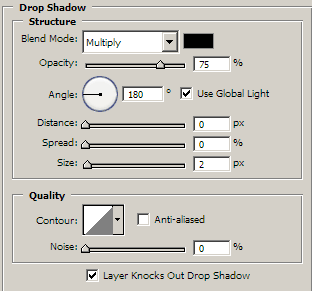
Let's start by applying a Drop Shadow style to the shape layer. Go to Layer-> Layer Style -> Drop Shadow (or just double click on the layer at the layers palette) and use these settings.
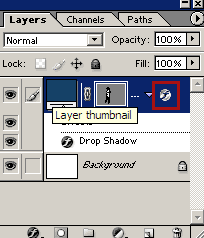
Now right click on the little (f) besides the layer at the layer palette. I have circled it in the screenshot below.
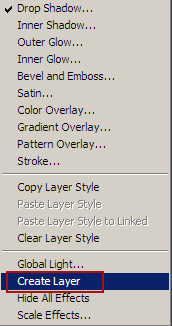
From the pop-up menu select "Create Layer"
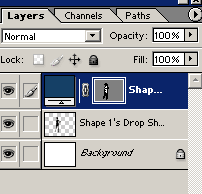
A new layer will be created from the Shadow effect. Your layer palette should now look like this.
Select this new "Shadow" layer and go to Edit-> Transform -> Skew and skew it somewhat like this.
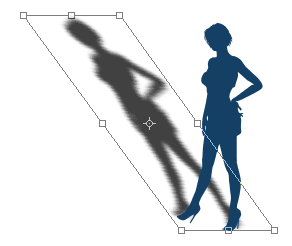
Apply the transformation and to to Edit-> Transform -> Distort this time. Now you should bring the top horizontal line of the rectangle down.
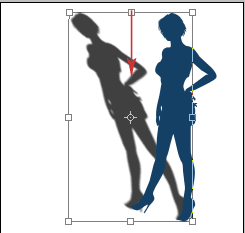
You may need to align a bit the shadow layer with your original layer and you are done. I applied a gradient to the background and here is my final result.