


Step 1
Create in photoshop the new image 200x200px. Create a new layer and name it(him) "artbosco". With the help of tool Elliptical Marquee Tool create allocation in the form of a circle on a layer "artbosco".
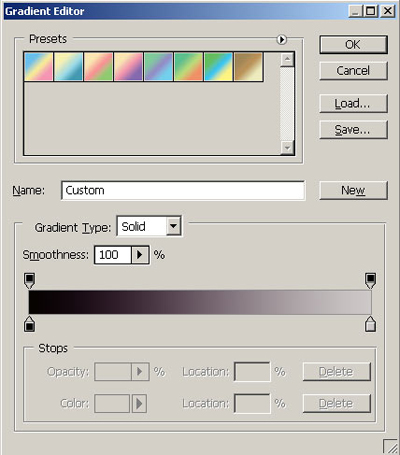
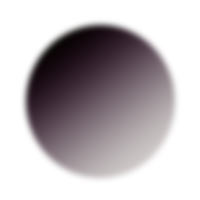
Choose tool Gradient Tool. Make transition from black to grey color on a layer "artbosco".
Step 2
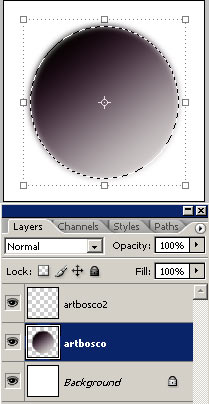
Create a new layer and name it(him) "artbosco2". Keeping key Ctrl click on a layer "artbosco".
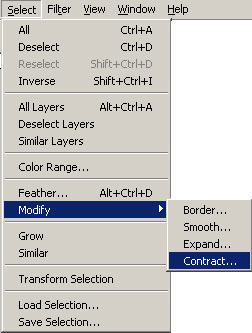
Not removing allocation allocate a layer "artbosco2". Execute Contract on 15px (Select> Modify> Contract).
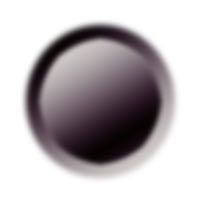
Keeping key Ctrl click on a layer "artbosco2". Fill allocation in an opposite direction.
Step 3 Create a new layer and name it(him) "artbosco3". Keeping key Ctrl click on a layer "artbosco2".
Not removing allocation allocate a layer "artbosco3". Execute Contract on 4px (Select> Modify> Contract).

Fill allocation by any color.
Step 4
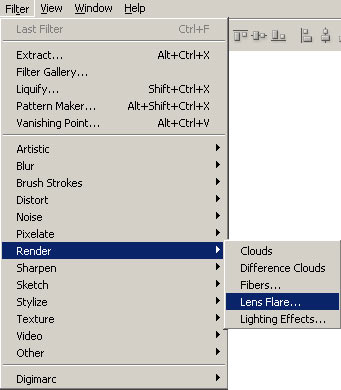
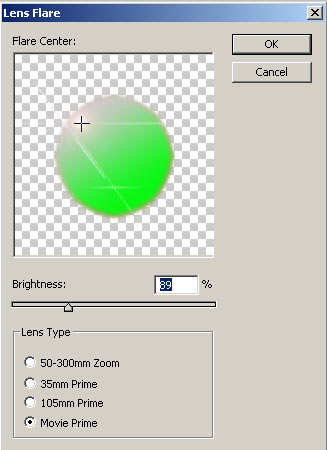
Allocate a layer "artbosco3" and add a patch of light (Filter> Render> Lens Flare).
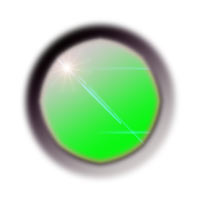
That has turned out
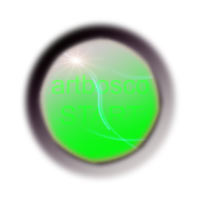
That has turned out at me.
And so after application of filter ZigZag.
