1. Start with your new document and select Rounded Rectangle Tool from Tool bar and set its Radius to = 25 PX.
2. Draw a Rounded Rectangle and right click on the layer and select rasterize. Set your foreground color as #FF99FF and background color as #CC66CC.
Now select Reflected Gradient Tool. Select the layer(Shape 1) with Ctrl and mouse click and fill the selection with Reflected Gradient.

3. Now select the layer(Shape1) layer and select Contract from Select>Modify>Contract. Set value to 3 Px. Now select Feather from Select>Feather and set its value to 3 Px. Create a new layer.
Press "D" to reset the background and foreground color. Press "X" to exchange the background and foreground colors, now white is your foreground color. Select Gradient tool and select "Foreground to Transparent". Create a New layer and fill this layer with gradient like this:

4. Now again Select the layer(Shape1). Select Lasso Tool from Tool bar and set its selection to "Subtract from Selection"
 Add Selection>Feather of 3 Px and Subtract the above selection so that your image look like this:

Fill this selection with White and Set its layer mode to "Overlay"
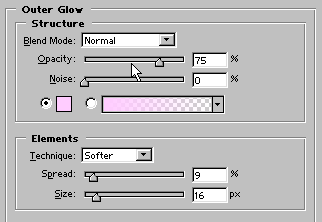
5. Apply some Outer Glow.