


This is another simple tutorial that shows you how you can use photoshops "Photomerge" function to merge together panoramic photographs easily. Some times people spend time dragging images onto a big canvas and try merging with another image manually and the whole thing becomes one ugly mess. Photoshop does all the hard work. I am using these 3 pictures which I took while on holiday -
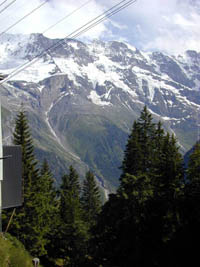
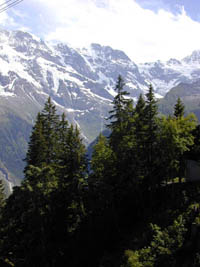
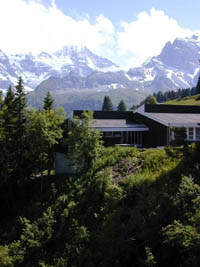
Now I just open up the pictures in photoshop.
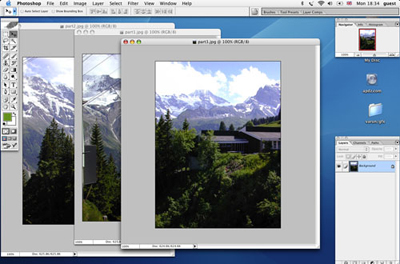
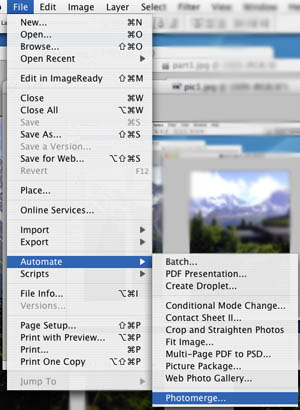
Now go to File>Automate>Photomerge.
Select the pictures you want to join up. Under the composition settings tick the advanced blending option. Then press the preview button. This should blend together the images a bit better. Then press ok and let photoshop do the rest.
Note: When taking shots for this kind of use it is useful to use a tripod to get precise alignment when the photos are getting joined up. I unfortunately did not do this so when my photographs where merged together there was a lot of wasted space so i had to crop away the unused bits which left me with the smaller picture. Also remember when taking the pictures, to overlap each shot with the one next to it by 10-20%. This helps photoshop merge them together better.
