Start with a new document in any size, Mine is 300x300px.
Press "D" to reset fore- and background colors,
Go to "Filter>> Render>> Clouds"
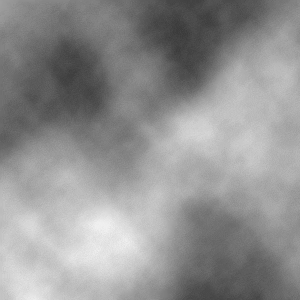
Now we are going to make some changes to the levels.
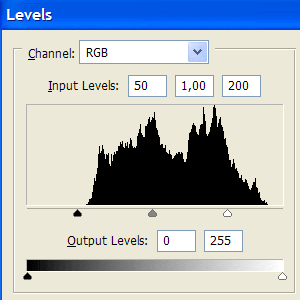
Press "Ctrl+L"
Use These settings:
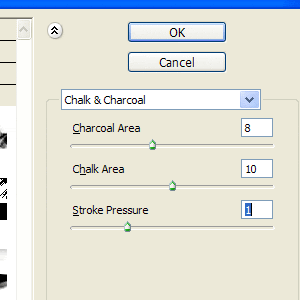
Now go to "Filter>> Sketch>> Chalk & Charcoal"
Use these settings:
The image should now look smoething like like this:
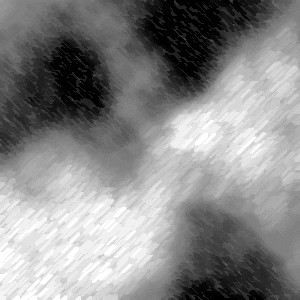
Now go "Filter>> Blur>> Gaussian Blur"
"Radius: 1,5 pixels"
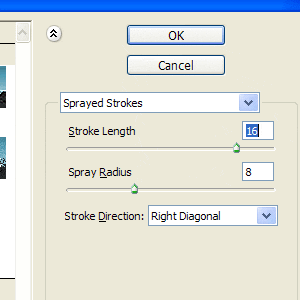
Now go to "Filter>> Brush Strokes>> Sprayed Strokes"
Use these settings:
The only thing remaining now is the color.
Press "Ctrl+U", make sure "Colorize" is marked.
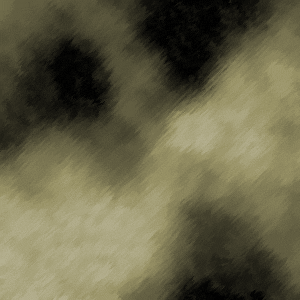
Here's my result: