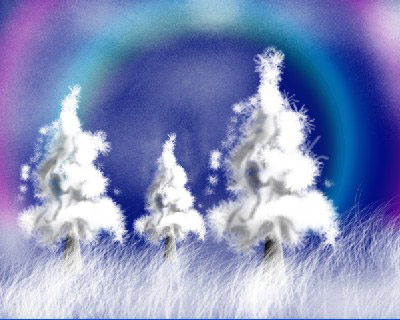
Summary: This photoshop tutorial will demonstrate the use of art history brush to create snow covered christmas trees. I have also tried to create rainbow effect. hope you will learn something new here.
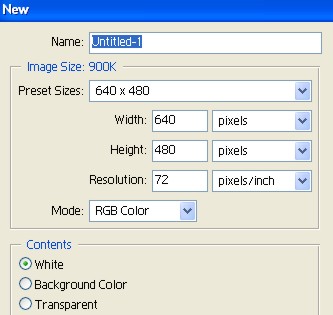
1. Open a new document here I used the size 640 by 480 resolution 72 but you have the option to choose as per your requirements.
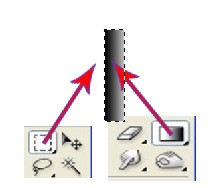
2. Using Rectangular marquee tool draw a shape. Select the layer and use Gradient tool to fill the color. Press Ctrl+D to deselect.
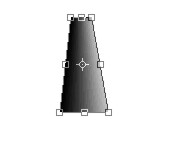
3. Now press ctrl + T and using mouse drag the corner of Transform selection. and deselect. see below.
4. Select the background Layer and make it Blue for sky.
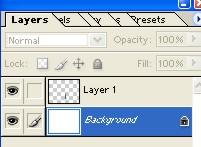
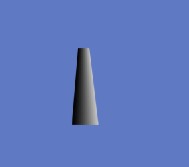
5. In the layer window, select Layer2 and then select art history brush as brush size- 1 / mode- normel / opacity-10 / style - tight long. Use the brush as shown below.
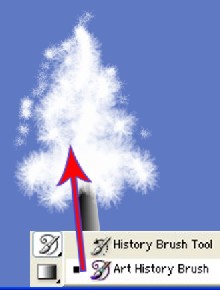
6. Now use burn tool with this setting brush size-20 / range- high light / expo-30.
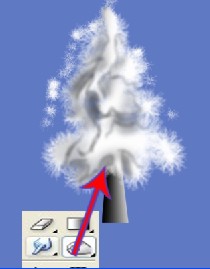
7. Merge Layer1 and Layer2 using Ctrl + E and then use Ctrl + J to make a copy of Layer1.
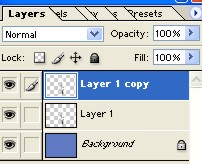
8. Using Move tool slide the copied shape. Reduce the size by pressing Ctrl + T and then Press ENTER when done.
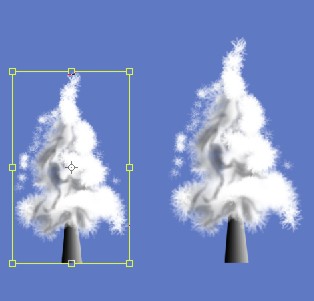
9. Repeat step 8 from above to create one more copy.
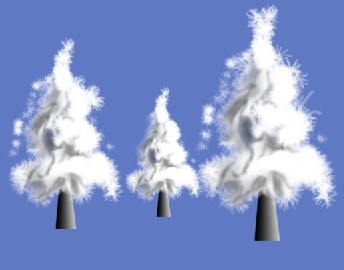
10. Now again use the Art history brush with brush no- 112 / opacity - 1 / mode- normel to create long snowy grass.
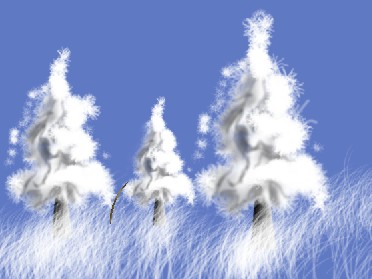
11. Merge all the layer at this point while pressing Ctrl + E.
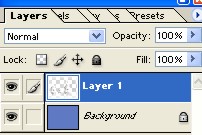
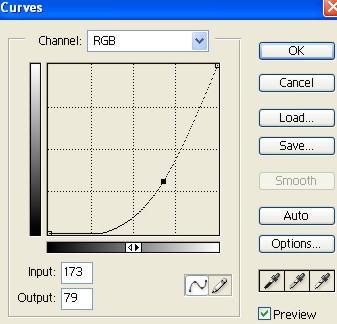
12. Select the image > Adjustment > Curves and use the setting as input-173 / output-79, Press ok.
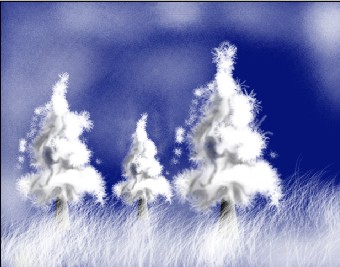
13. Look at the image below after applying above photoshop technique.
14. Choose a new Layer and using gradient tool color as follows. use Opacity - 40.
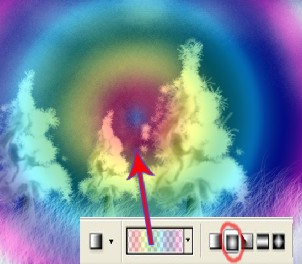
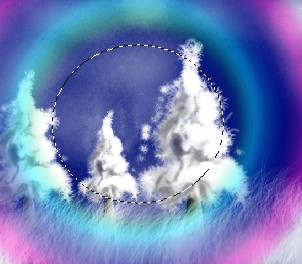
15. Now take Marquee tool and draw a eclipse with setting Feather -22. Press Delete and deselect.
16. Now to delete the rainbow effect from bottom, use Rectangular marquee tool and create a rectangle. Do Right click > feather 22 and then delete. After that deselect.
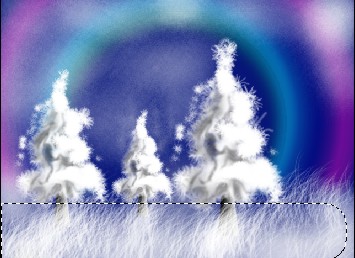
17. This is it. How do you like it?