Today I am going to make a blue (at) @ sign logo using photoshop.
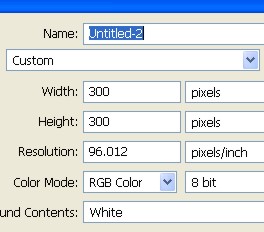
1. First of all open a new document.
2. Here with the Gradient Tool fill any color you like. Here I am using color #3D54A9 - #7C98E3.

3. Now with the Text Tool type @.

4. Here Double on Text Layer > select Gradient Overlay. As you can see in the image below.
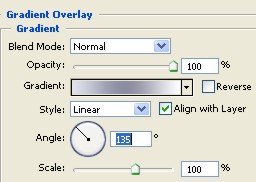
5. Now your Text will look like this, as shown below.

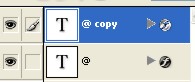
6. Press Ctrl+J, to make a copy of Text Layer.
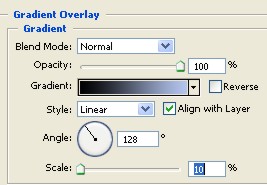
7. Now select Gradient Overlay, and adjust every thing according to the image below, click ok.
8. Finally your Image will look like this.