


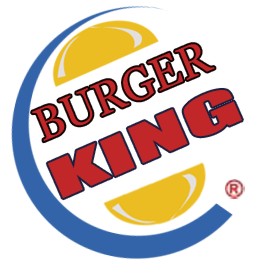
Let's make Burger King Logo using the Photoshop.
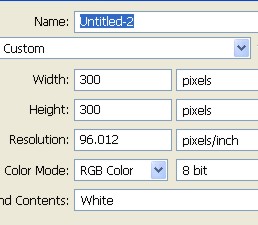
1. Here first of all open a new document with white background. Here I have used document size width 300 X height 300 and resolution =96 .
2. Now with the help of Rectangular Marquee Tool create a shape > Select new Layer (Layer1), and fill the layer with the color #3364A9. Now deselect [ctrl+D ].
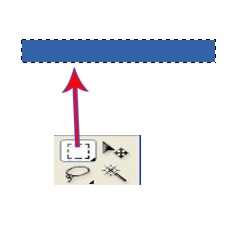
3. Now press ctrl+T here. You have to transform the shape, with the help of mouse drag the corner and make them pointed. you can get the idea from image below.

4. Now here select the filter > then select Distort > now select Polar Coordinates.
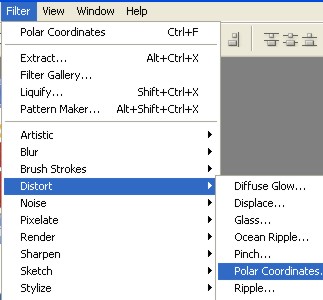
5. In the Polar Coordinates select > Rectangular to Polar, and click ok.
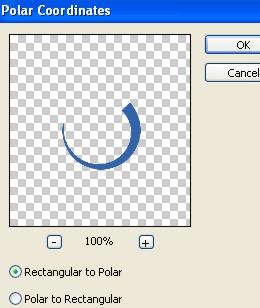
6. Now your image will look like as shown below. With the help of Transform Selection make your image round.

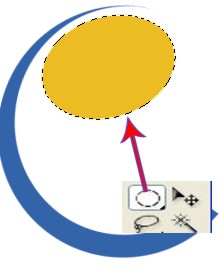
7. Here now with the help of Elliptical Marquee Tool draw a new Ellipse. Select new Layer (Layer2), now fill it with the color #EBBD22. Now deselect it.
8. Here with the help of Rectangular Marquee Tool create a new Rectangle. Now select new Layer (Layer3).
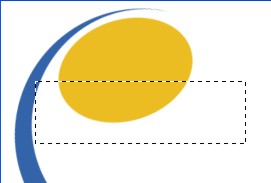
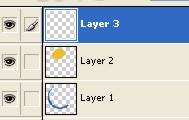
9. Fill the color in the shape that you just created. Now select Transform[ctrl+T], then with the help of your mouse rotate the rectangle. As you can see in the image below.
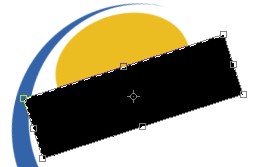
10. Now select Layer2, and press delete at your key board. Now select Layer3.
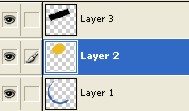
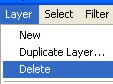
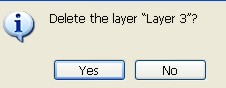
11. Here select Layer Menu > select delete > click yes. It's very clear in the image below.
12. Now your image will look like this, as in the image below.

13. Here with help of Lasso Tool create the shapes as you can see in the image below. Fill the shape with the color #E3DFDF, now deselect it.

14. You have to make the copy of Layer2, so press ctrl+J.
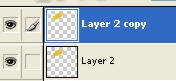
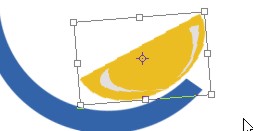
15. Now with the help of Move Tool slide down the shape that you just copied. Press ctrl+T to make the shape round. Now press the Enter key.
16. Now here with the help of Text Tool type The word Burger King.
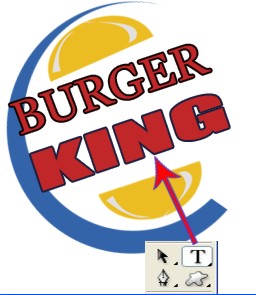
17. Our Final Image will look like this. So who is ready for Lunch?
