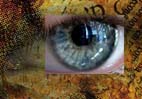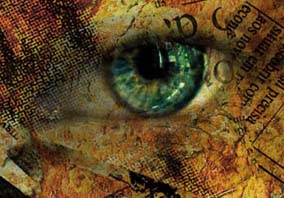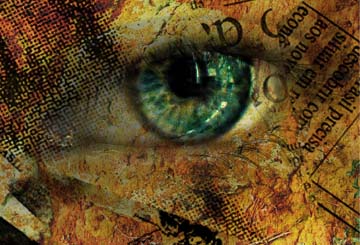
This is thephotos I blended
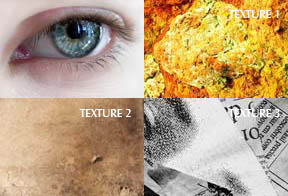
Step 1
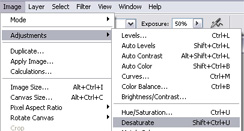
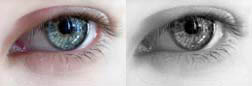
Open your main image in PS , and turn it B/W , (Image/Adjustment/Desaturate )
Step 2
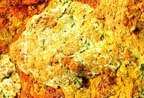
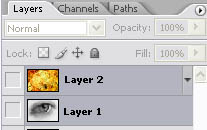
Add the first texture to the palette , ( open the image and drag it into your palette or copy paste it )
Step 3
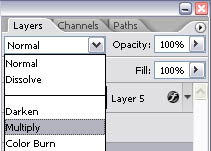
Change the blend mode to multiply or anyone you like , each blending mode is has different effects , you should check them all out ,
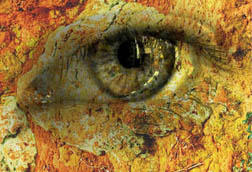
So far it looks like this
Step 4
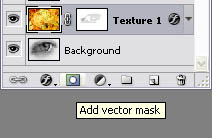
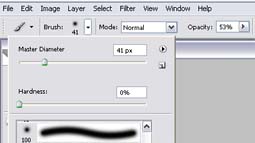
Add a mask to the Layer 2 to clear up the iris and white surface , to get better effect it is better to use the soft brush and keep the opacity low so your mask get softer
Step 5
Repeat Step 2 3 4 but using now textures 23 and rename the layers to Texture 1 , 2 ,3 etc
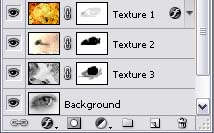
It should look like this so far :
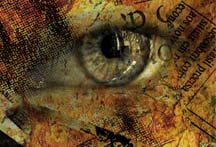
Step 6
I want to add some color to the iris so , Open the eye picture again and crop a square enclosing the iris , paste it in your palette and make it match with the original iris , (this is easier than it looks) , then erase with the soft brush the edges and play with the (image/adjust/brightness contrast) and (image/adjust/color balance ) so you get your desired tones