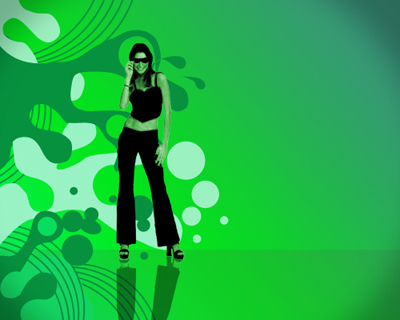
This tutorial will show you a simple method to create an effecive wallpaper that you can use for your desktop or for any sort of web background.
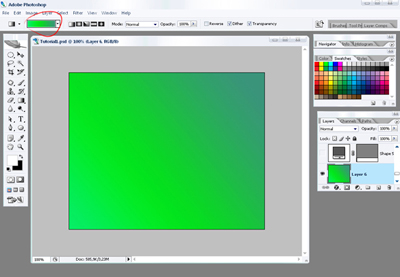
Let's start to create an attractive desktop. We'll create a new file using dimensions1024x768 (depending on the resolution you have on the screen) and 72 dpi. Next step includes choosing the instrument (Gradient tool
 ).
).
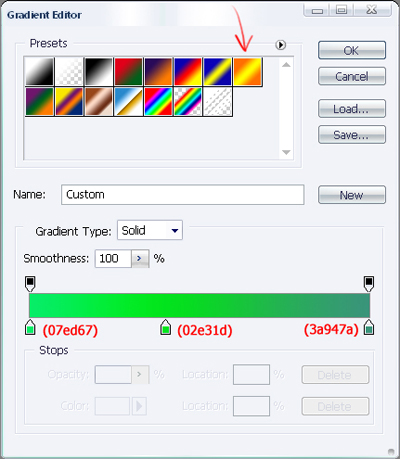
Here we choose the gradient shown with a red pointer. We expose the colors by pressing the squares indicating colors. Next to them are shown the colors codes, which are demonstrated on the picture with the red color also.
Next to them are shown the colors codes, which are demonstrated on the picture with the red color also.
Then choosing the (Gradient Tool
) we begin to draw the paint starting with the lower left corner to the upper right corner.
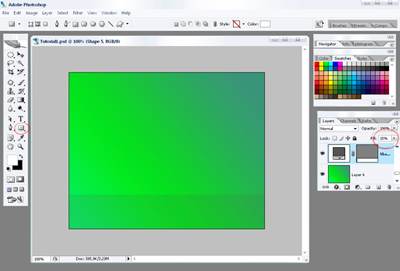
Then we take the instrument (Elipse tool
 ) keeping the mouse pressed, choose the square figure. Then we draw a rectangle in a way that it must be upper than the background, like in the picture. After that we set out 15%, shown with the red color.
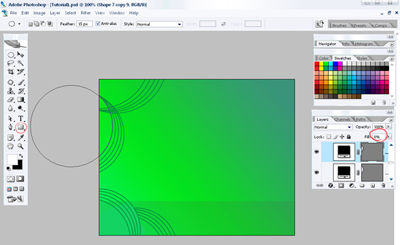
Now we start to create this kind of circles, choosing again the (Elipse tool instrument
). We draw the circle by holding on Shift button and set out 0% in the red function.
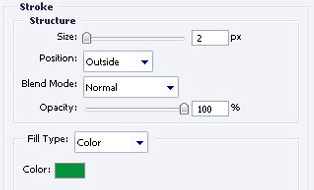
Then we drop in Blending Options function.It is possible by pressing the right mouse's button on the level you want to use this function. Expose everything the way it is done in the picture.
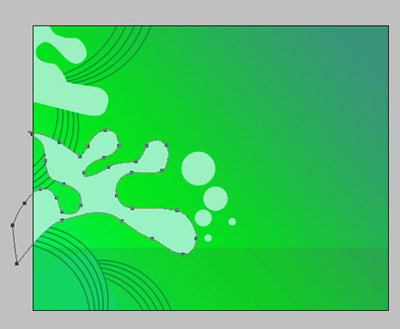
Then we'll copy the created circle, almost the same like in the previous picture. Now we create figures like this, using the Pen tool and color code 9bflc0. It is possible to create the circles choosing again the (Ellipse tool
)
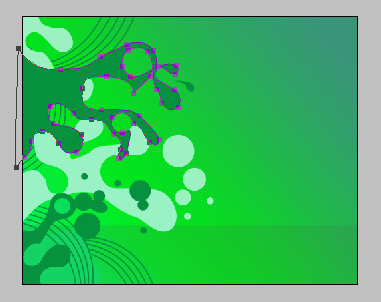
Also you may add black figures with 06913e color code on the levels created earlier.
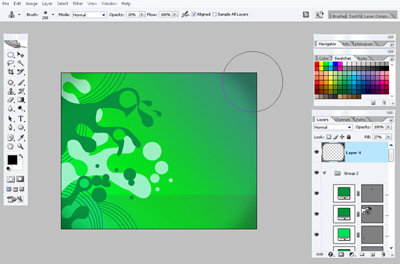
Now we create a new level covering the previous one. Using the (Brush tool
 ) with black color and an opacity of 10% we paint the corners, like in the picture.
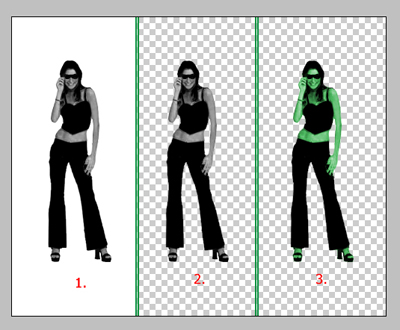
Now we'll take the picture with the girl. Press the button combination (Shift+Ctrl+U) and the picture will become of black and white color (pict.1). Then we'll delete the background (pict.2) using the button combination Ctrl+U.
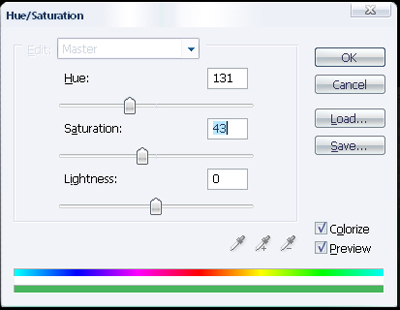
We represent everything like in the picture. As a result we'll have a green girl (pict.3).
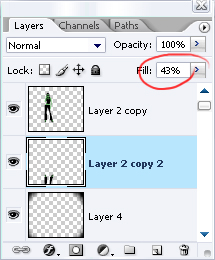
We'll expose the girl all over the levels. Now we have to add only the reflection on the floor. Copy the level with the girl and this copy we'll position in a vertical line using the function "free transform" from the right button of the mouse.
Set out Fill on 43% like in the picture.
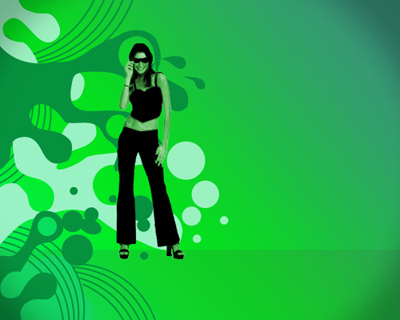
The final result.