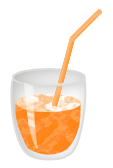
Create this shape with Ellipse tool.

Add these layer styles in it:
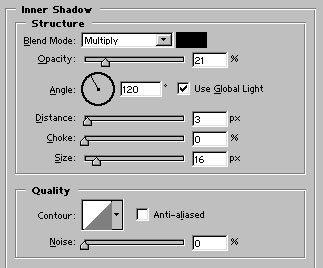
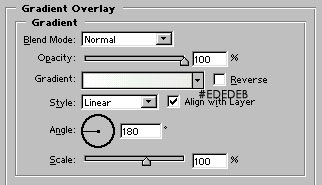
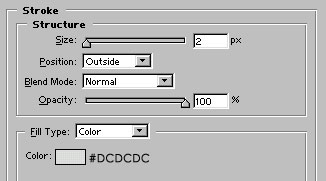
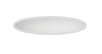
Draw this shape with pen tool :
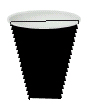
Adjust the nodes to have this shape :
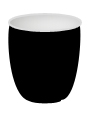
Apply similar layer style as we applied in the first shape :
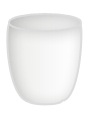
Draw this shape with Ellipse tool. Use #FBBF83 color to fill the shape.
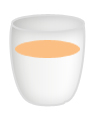
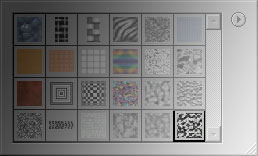
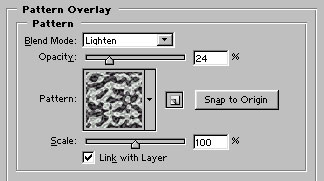
Now apply Pattern overlay as shown. First, select this pattern :
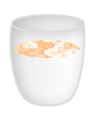
Draw this shape with pen tool. Use #FF870F color to fill the shape.
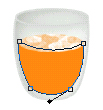
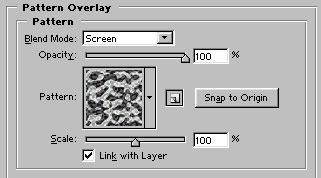
Apply pattern overlay as shown:
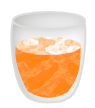
Draw this shape with pen tool. Use pure gray (R:128, G:128 & B:128) as foreground color while drawing the shape :
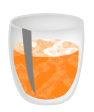
Rasterize the layer. Change the layer style to screen :
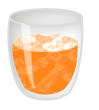
Draw this white color shape with pen tool.
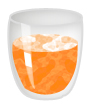
Rasterize this layer. Reduce the opacity to 65%. Use eraser to cut the part of the shape as shown in the following figure :
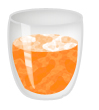
Draw this shape with pen tool. Use #FF870F color to fill the shape :
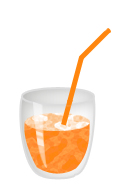
Rasterize the layer. Cut the part of the shape which is covering the glass as shown :
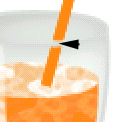
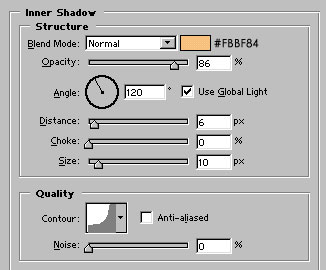
Apply inner shadow as shown:
Our Juice Glass is ready