


In this tutorial, you will learn to create nice looking glossy comment button. Final output of the glossy comment button can be seen below :

Select rounded rectangle tool. Set the radius to 5 pixel. Draw the shape as shown. You can use any color as it will be changed after apply gradient overlay in the next step. :

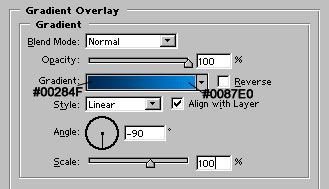
Apply Gradient overlay as shown :

Draw a white color shape with rectangle tool :

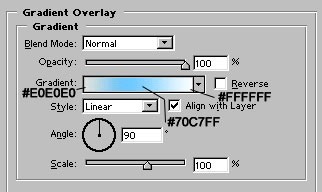
Apply gradient overlay as shown. It will give a glossy effect to your button :)

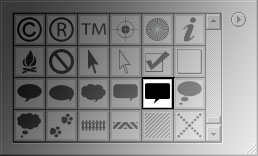
Now, select this auto shape :
Draw the shape as shown :

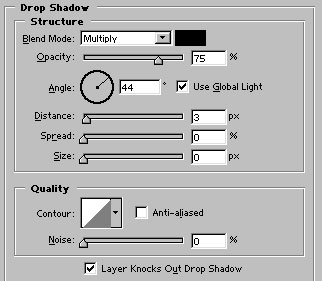
Apply these layer styles in it :
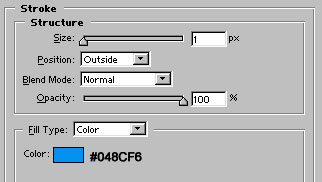

Our final step is to draw some 1 pixel wide #36A3F8 color lines with line tool. Our nice looking glossy comment button is ready :)
