

This adobe photoshop 7.0 tutorial teaches you to design nice looking wizard Icon. Final output of the wizard icon tutorial can be seen below:

Create this shape with Rectangle tool.

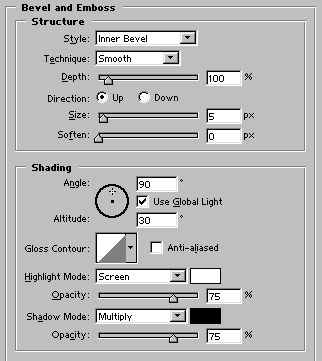
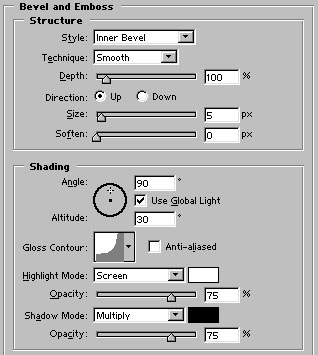
Apply Bevel and Emboss as shown:

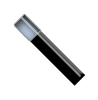
Now, with the help of Rectangle tool, draw this shape. Fill it with #B1C6DB color.

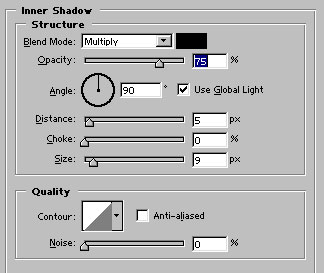
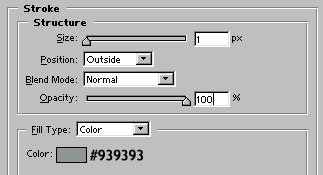
Apply these layer styles in it:

Draw 2 pixel wide lien with line tool selecting white as foreground color. Reduce its opacity to 50%.
Now, draw this start with the help of autoshapes.

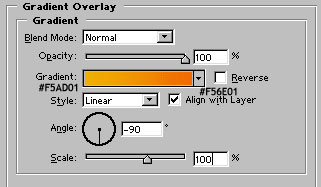
Apply these layer styles in it:
Gradient color = #F5AD01 & #F56E01
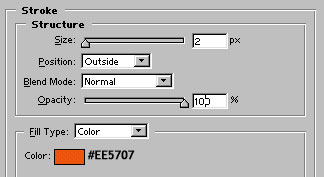

Duplicate, transform and place the stars as shown:

Draw the shape below the wizard stick with ellipse tool. Use dark gray color to fill the shape.

Rasterize and apply gaussian blur (1.3 pixel ) in it. Our wizard icon is ready :)
