Start by creating this shape with pen tool.

Apply gradient overlay as shown:
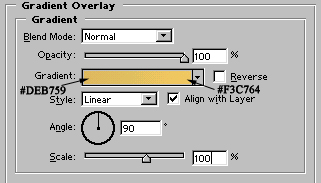
Image after applying above layer style:

Similarly, draw another shape with pen tool.

Also apply similar gradient overlay in it.

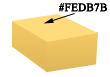
Draw another shape and fill it with the color shown in the figure:
Draw this shape. Color is not important as it will change when we apply gradient overlay in it.

Apply gradient overlay as shown:
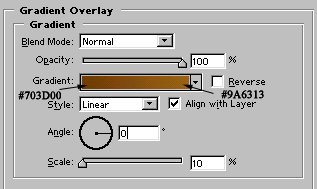

Draw some lines as shown:
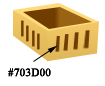
Draw another shape as shown:

Fill it with similar gradient as we filled the first shape.

Draw these 3 pixel wide lines with line tool.
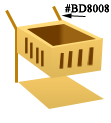
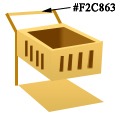
Draw a black color circle with ellipse tool. Draw another smaller white color circle with same tool. Merge and duplicate the wheel layer and place it as shown. For the left side wheels, there is no need to draw a white circle.

Draw 3 pixel wide lines with line tool.
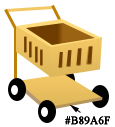
Finally draw the shape with pen tool and fill it with #DBAA4B color. Our shopping cart is ready -:)