We'll begin this tutorial, by creating a new canvas at a size of 400 x 150 with White as the background color.
Select the "Text Tool" and use the below settings:
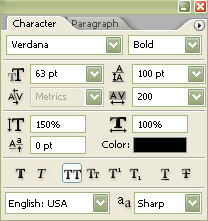
Now type your prefered text.

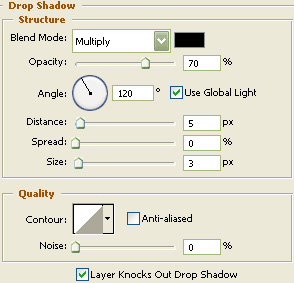
Now right click on the text layer in the Layers Palette and select, "Blending Options...". Now click on "Drop Shadow".
Do not click "OK" yet. Still more to do.
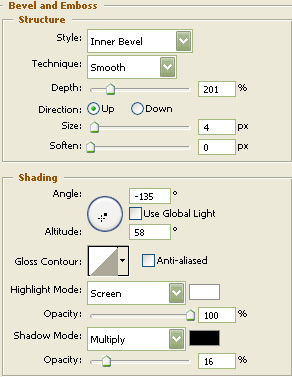
Now click on "Bevel and Emboss".
Do not click "OK" yet. Still more to do.
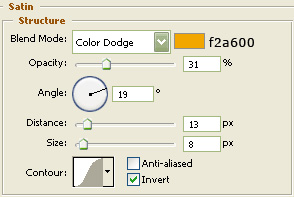
Now click on "Satin".
Do not click "OK" yet. Still more to do.
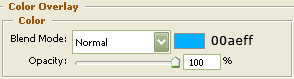
Now click on "Color Overlay".
Do not click "OK" yet. Still more to do.
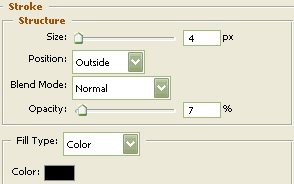
Now click on "Stroke".
You may now click OK.
The Results!!!
I hope you enjoyed this tutorial.