We can begin by creating a new canvas at a size of 380 x 184 using the color 232b38.

Now right click the layer and select, "Blending Options...". Now click on "Satin".
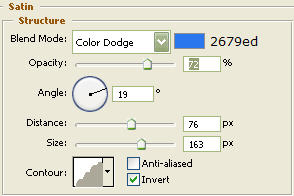
Click "OK".
You should now have the following:

Then go ahead and choose the text tool. I chose "Times New Roman" as the typeface at a size of 98 using the color ececec. Now type Metal and move on to the next step.

Now right click the text layer and select, "Blending Options...". Now click on "Drop Shadow".
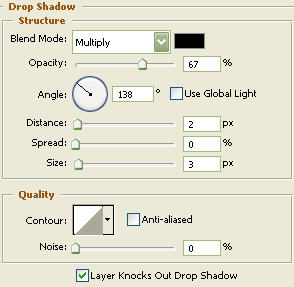
Do not click "OK" as of yet. Still more to do.
Now click on "Inner Shadow".
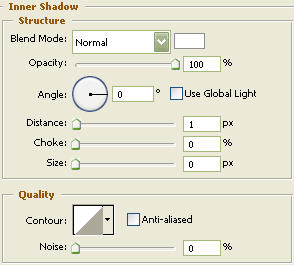
Do not click "OK" as of yet. Still more to do.
Now click on "Gradient Overlay".
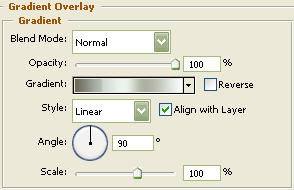
Click "OK"
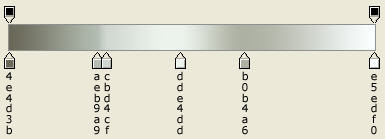
Use the below color and placement settings.
You should now have the following:

The Results!!!
I've also added some sparkles using the "Brush Tool". Then, the "Smudge Tool" to make it look starry for lack of a better word. Enjoy!!!