Create a new canvas at about 400 x 200. Now, type your text. I used "Times New Roman" bold at 48 pixels.

Now that you have your text, you can now right click on the text layer and select, "Blending Options...". Now click on "Drop Shadow".
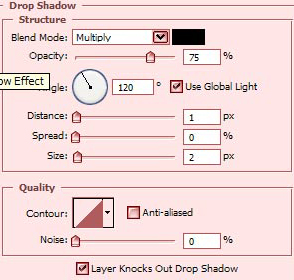
Do not click OK yet... still more to do.
Now click "Bevel and Emboss".
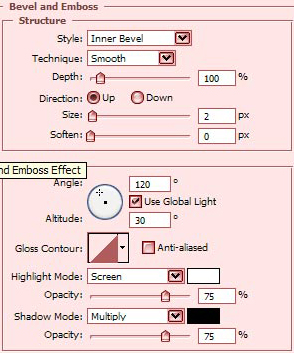
Do not click OK yet... still more to do.
Lets give it some color now by clicking on the "Color Overlay". I chose red, but you can use whatever color you wish.
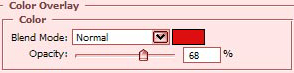
Do not click OK yet... still more to do.
Lastly click on "Gradient Overlay". Be sure white is the foreground color.
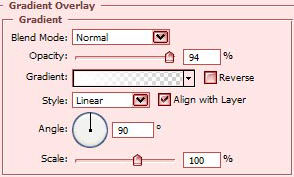
You may now click OK
The Results!!!