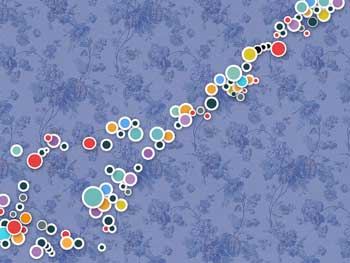
Create a new file having 1024x768 px and 72 dpi. Paint it the next indicated color - 5767A3.

Find an ornament's fragment, like this one shown below:
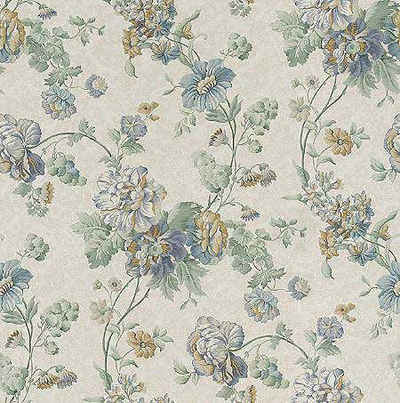
Save it!
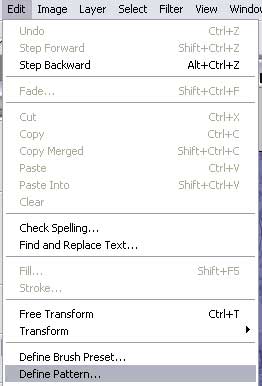
Create now a new layer and select next options:
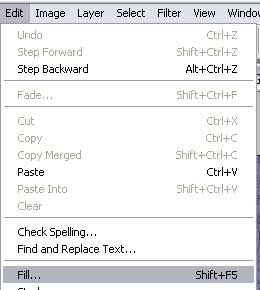
Find here the earlier saved ornament:
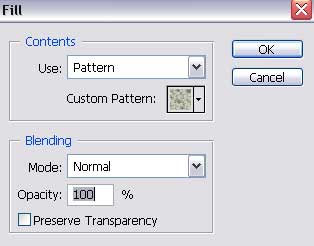
Set Soft Light regime on the layers.

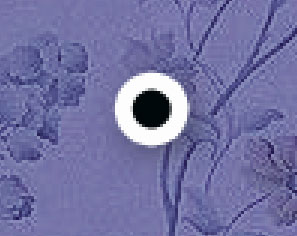
Choose now this instrument
 and draw a circle colored with 000709.

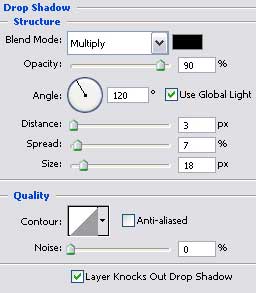
Blending Options-Drop Shadow
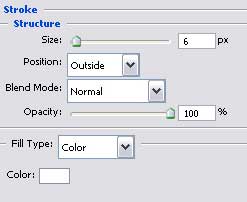
Blending Options-Stroke
Make a copy of the new made layer:

Make several copies more of the circle's layer (the color is 1D434B) and apply the Free Transform selection to minimize or enlarge the copies if that is necessary.
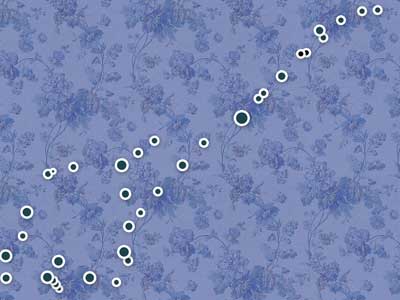
Make several copies more colored with DAC625 and change the copies parameters, using the usual option - Free Transform.
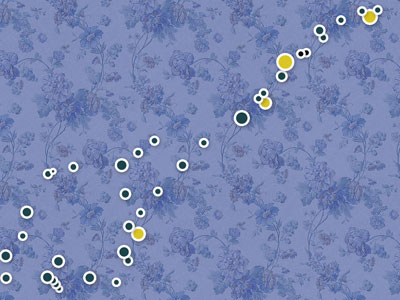
Several copies must have these colors: 657174 and 1D434B, changing the Stroke parameter on 2 px.
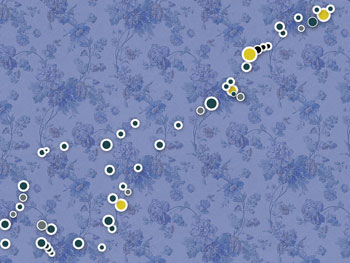
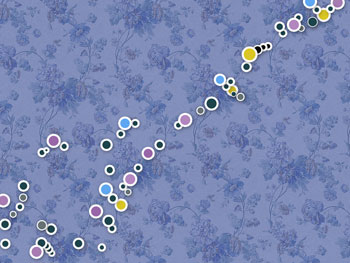
Create several copies also colored in 5FA7F0, having the same Stroke parameter as the first circles have:
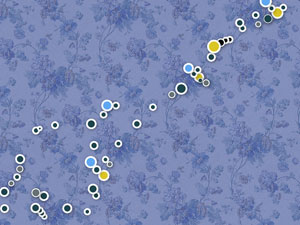
Make several copies of the circles colored this time in 9966A8 and B286BF, changing also the parameters by applying the Free Transform option.
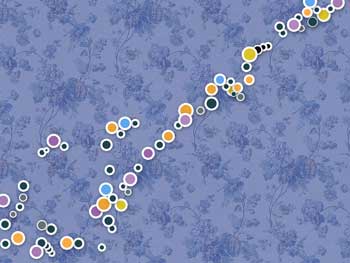
Several copies must have the orange color:
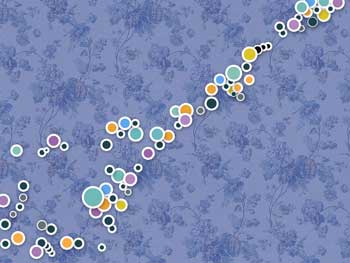
Copy several circles and change their color in 70B9B7 and make use again of the Free Transform option to change the circles' parameters:
A certain quantity of the copies must have this color - E64141.
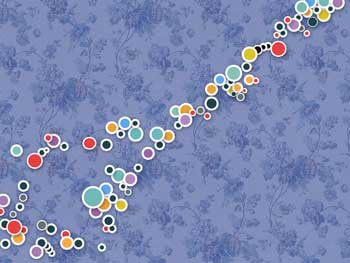
And several more colored in different colors and having different dimensions. The Stroke parameter also should be different.