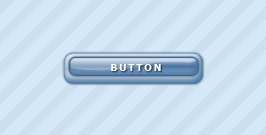
We'll begin this tutorial, by selecting the "Rounded Rectangle Tool". Draw a rectangle as illustrated below with a radius of 7 pixels. Color doesn't matter.

Now that you have your button, you can now right click on the button layer and select, "Blending Options...". Now click on "Inner Shadow".
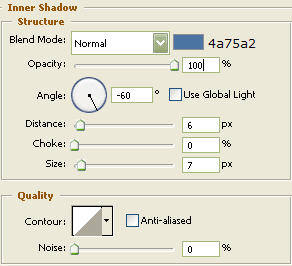
Do not click "OK" yet. Still more to do.
Now click on "Outer Glow".
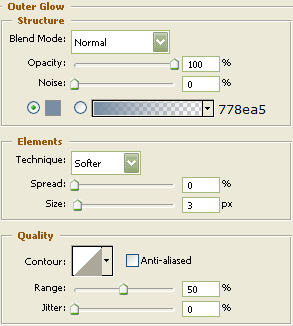
Do not click OK yet... still more to do.
Now click on "Inner Glow".
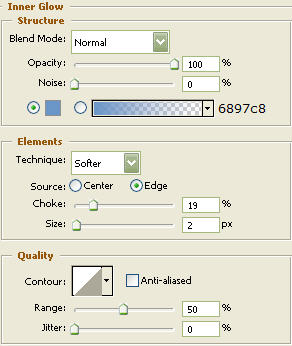
Do not click OK yet... still more to do
Now click on "Gradient Overlay".
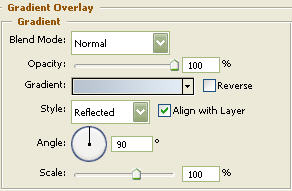

You may click "OK".
You should now have the below image.

Select the "Rounded Rectangle Tool" again and draw a rectangle as illustrated below with a radius of 12 pixels. Color doesn't matter.
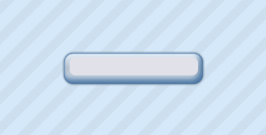
Now that you have your shape, you can now right click on the shape layer and select, "Blending Options...". Now click on "Inner Shadow".
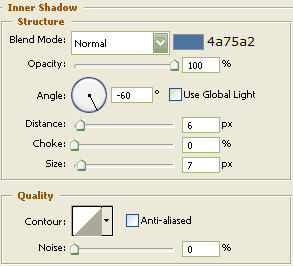
Do not click OK yet... still more to do.
Now click on "Outer Glow".
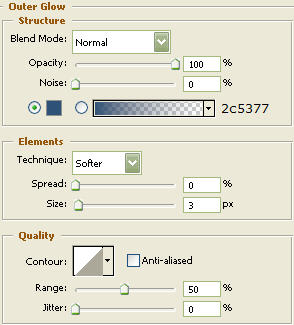
Do not click OK yet... still more to do.
Now click on "Inner Glow".
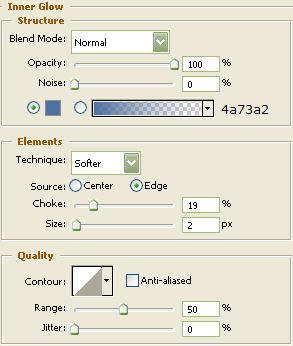
Do not click OK yet... still more to do.
Now click on "Gradient Overlay".
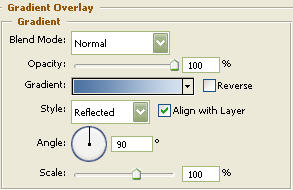

You may click "OK".
You should now have the below image.

Select the "Text Tool" and use Verdana typeface at a size of 9, Bold and all caps as illustrated below. Set the Tracking to 200.
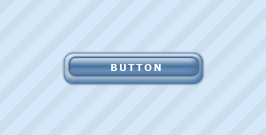
Now that you have your text, you can now right click on the text layer and select, "Blending Options...". Now click on "Drop Shadow".
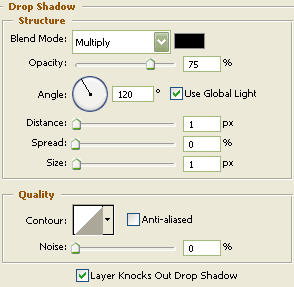
You may now click "OK."
The Results!!!
After adding a glare to make it look glossy...I'm thinkin' this bad boy is all but done.