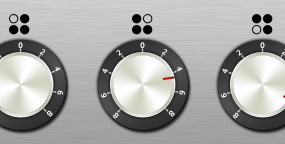
To begin, select the "Paths"

option, in the options pallete, draw a circle using the "Elipse Tool" and select the "Text Tool." Now click on the path and type in some numbers as I have done below. Next, draw another path and create some line using the lower case "l" for the marks. You may need to adjust the "Baseline Shift" in the type pallete.

Now that you have your text, you can now right click on the text layer and select, "Blending Options...". Now click on "Drop Shadow".
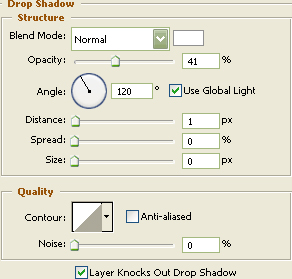
You may now click OK.
Next, change the layer type to Shape Layer

and draw another circle using the "Elipse Tool" with c8cab5 as your color as shown below.
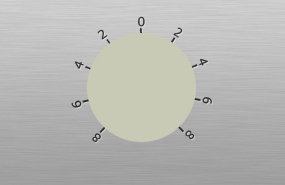
Now that you have your circle, you can now right click on the circle layer and select, "Blending Options...". Now click on "Drop Shadow".
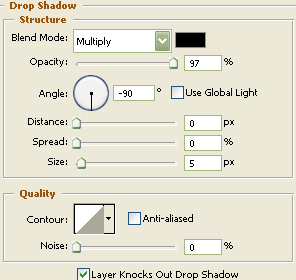
Do not click OK yet... still more to do
Now click on "Outer Glow".
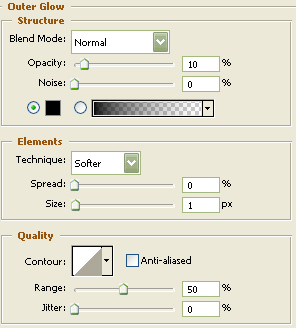
Do not click OK yet... still more to do.
Now click on "Gradient Overlay".
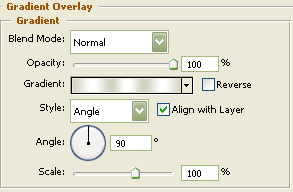
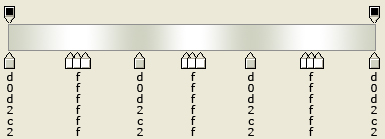
You may now click OK.
Next, draw yet another circle using the "Elipse Tool" and make certain to draw the circle a little smaller than the previous one as shown below. Then turn the Fill down to 0%.
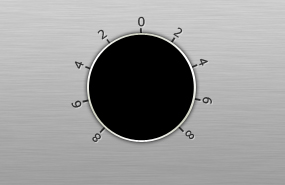
Now that you have your circle, you can now right click on the circle layer and select, "Blending Options...". Now click on "Stroke".
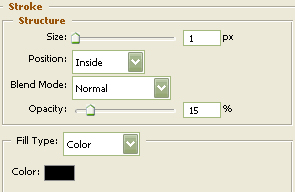
You may now click OK.
You should now have the following:
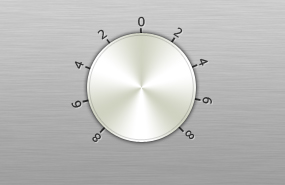
Next, draw another circle using the "Elipse Tool" with c8cab5 as your color again as shown below.
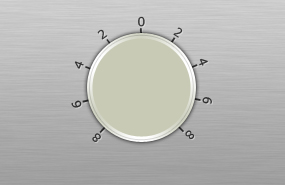
Now that you have your circle, you can now right click on the circle layer and select, "Blending Options...". Now click on "Drop Shadow".
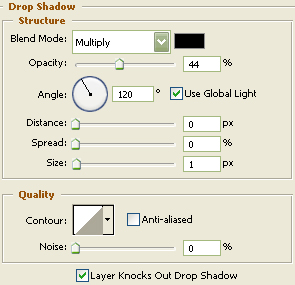
Do not click OK yet... still more to do.
Lets give it some color now by clicking on the "Gradient Overlay."
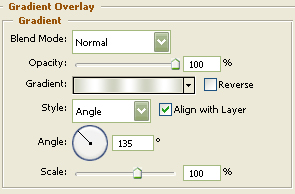
You may now click OK.
You should now have the following:

Now select the "Line Tool" and set the pixels to two and draw a short line as I have done below with black as your color.

Now that you have your circle, you can now right click on the circle layer and select, "Blending Options...". Now click on "Inner Glow".
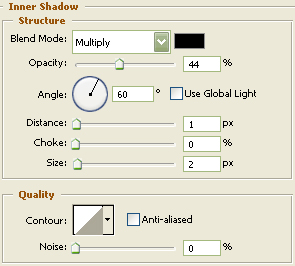
Do not click OK yet... still more to do.
Now click on "Outer Glow."
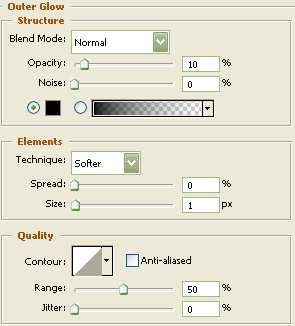
Do not click OK yet... still more to do.
Now click on "Gradient Overlay."
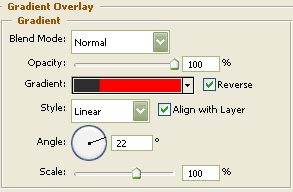
You may now click OK.
You should now have the following:
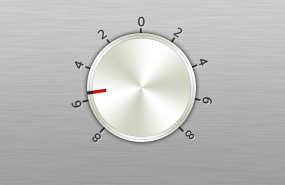
The Results!!!
I've added some type as well as some other examples. I hope you enjoyed this tutorial.

Example 2
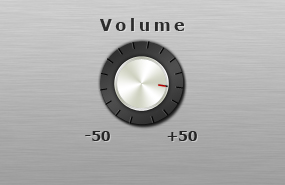
Example 3