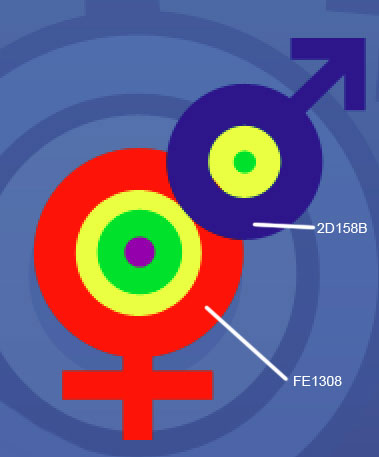
Select a brush of medium size now and paint the elements with the color 2D158B.

Press the Alt button and make a click between the brush's layer and the layer of the red element (on the layers).

Do the same operation with the blue indicator, using a brush with the color FE1308, painting also the color's transition - FE9900.

Press the Alt button and make a mouse's click between the brush's layer and the blue indicator (on the layers).

Change the colors of the rings situated above the indicators (don't forget to place correctly the layers).
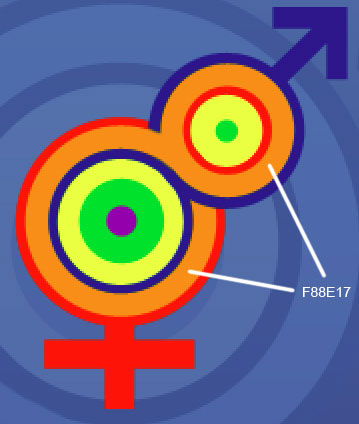
Finish the transition of the color FE1308.

Apply the next parameters for the eighteenth copy:
Blending Options-Drop Shadow



Select the next instrument
 to represent several circles situated one on another.
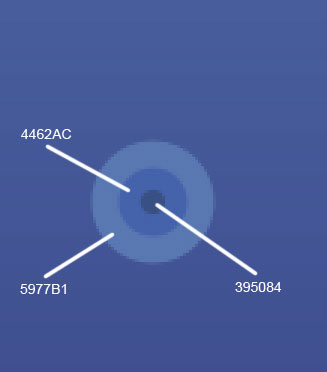

We have to merge down in a group all the layers composing the recently made three circles. Copy the new made group 8 times and place the copies like it is demonstrated below.

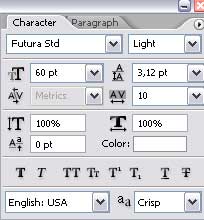
Insert the text we want to place on the picture.

Finished!
