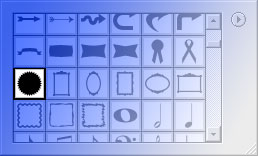
Select this autoshape :
Draw the shape with #DADADA color :

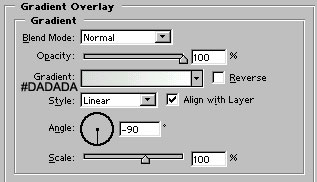
Draw a circle with ellipse tool and apply gradient overlay as shown in the next figure :

Draw another circle as shown. Use # FB9806 color for this one :

Draw this shape with pen tool :

Apply gradient overlay as shown :
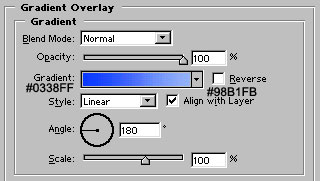
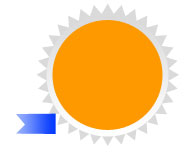
Duplicate this shape by pressing control+j. Go to Edit> Transform > Flip horizontal and place it as shown :
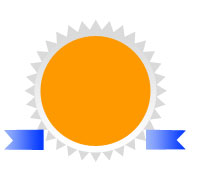
Draw another shape at both sides of the two shapes as shown. Use similar gradient overlay as we applied in previous two shapes :
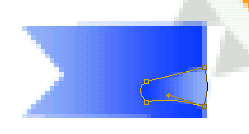
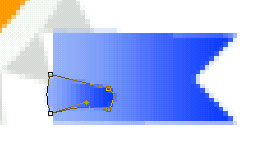
Now, draw this shape with pen tool. Use similar gradient overlay. In addition add little drop shadow in it :
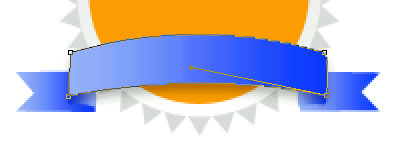
Our web seal is about to complete. Add your text in this web seal.

In addition, I have added glossy look to it. For this, create a new layer. Use elliptical marquee tool to draw a selection. Fill the selection from gradient tool by keeping white at the top and black at the bottom and changing the layer style to screen :