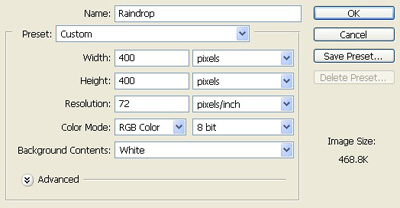
1. Take a new file of Height = 400 pixels,Width =400 pixels and of resolution 72 dpi in the RGB mode.
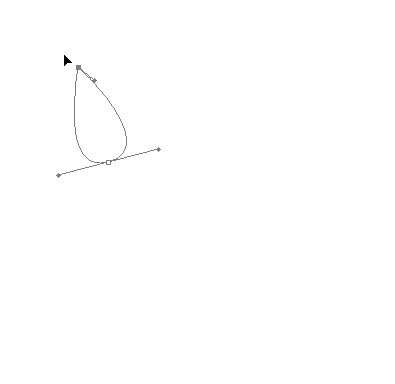
2. Take the pen tool and make shape of drop as in image. no big so far?
3. Make a selection and fill the white color in a new layer.
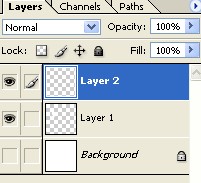
4. Take the Brush tool of this properties

5. Use the Brush tool as I have use it by making up the selection as in the selection.
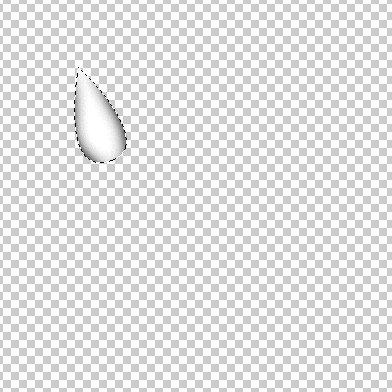
6. Take the pale blue color in the color palette and use it to fill in the drop under the selection as below in Image.
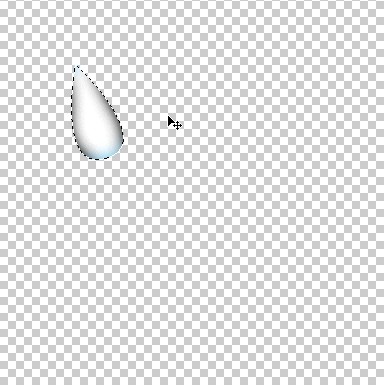
7. Turn off the eye of the layer of white color.
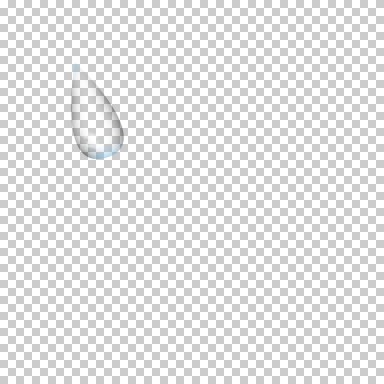
8. Make the new layer and fill the black to it
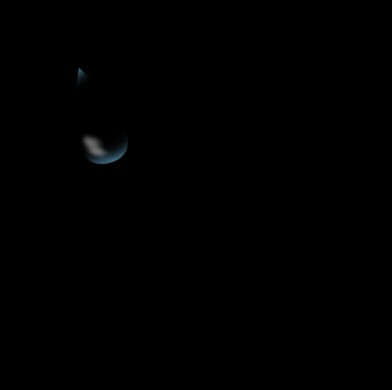
10. Goto the menu bar Filter>Render>Difference Cloud your Image will be like this.
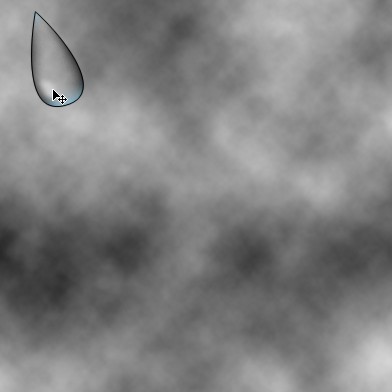
11. Now with the help of Brush tool make the area fill with white color as pointed out with the arrow.
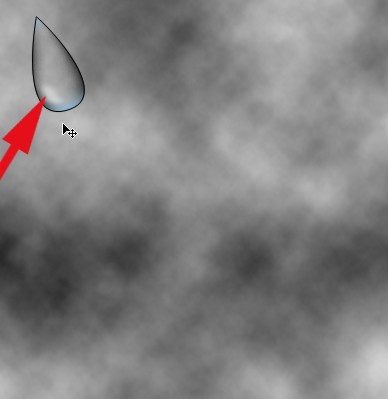
12. Give the stroke of 1px. of black color to make it darken.
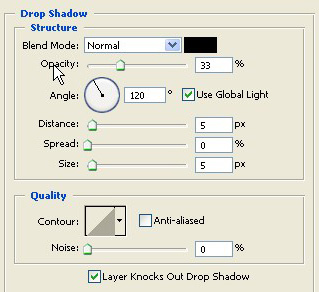
13. Now open the Blending Options>Drop shadow with these properties.
14. Make the copy of the layer as shown below.
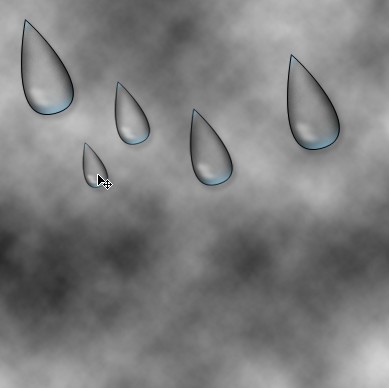
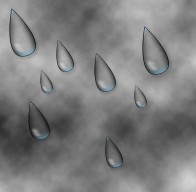
15. Your final Image will be like this.