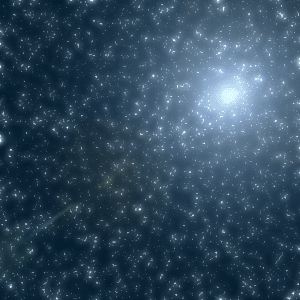
1. Make a new image. I'm using 300 x 300 pixels, transparent background.
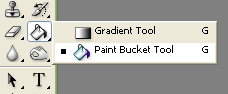
2. Use the Paint Bucket and fill the image with black.
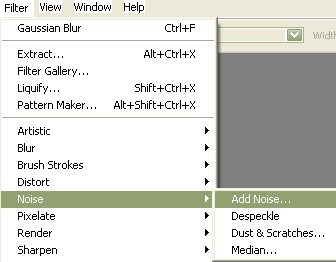
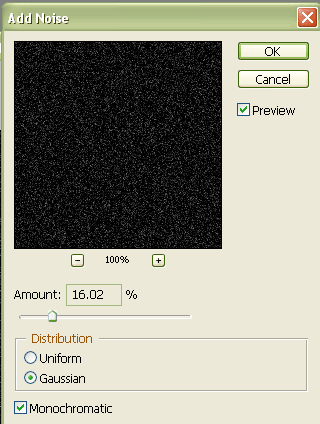
3. Go to Filter>>Noise>>Add Noise. Set the options for a blur between 14 and 18% distribution, select Gaussian and Monochromatic.
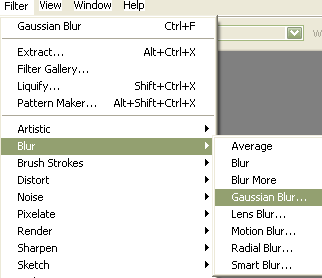
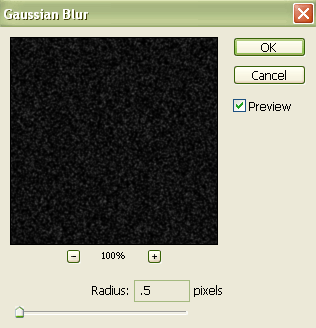
4. Your next step is to use Filter>>Blur>>Gaussian Blur. Set the blur between .4 and .8
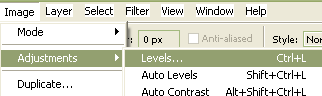
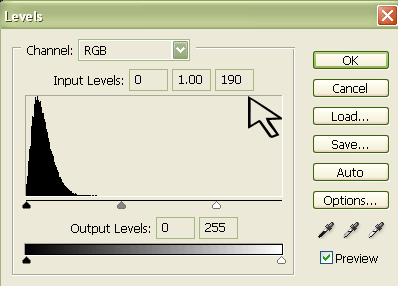
5. Now go to Image>>Adjustments>>Levels and set the white input to between 188 and 192.
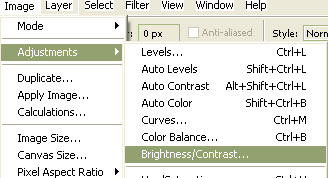
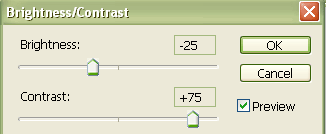
6. Go back to Image>>Adjustments but this time select Brightness/Contrast. Set the Brightness at around -25 and Contrast at around +75.
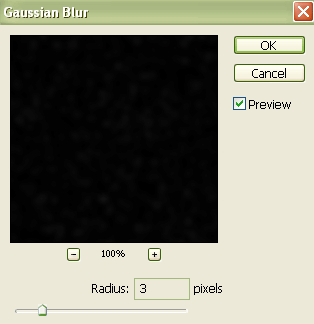
7. Right click on your layer in the Layer Palette and select Duplicate Layer. Set the Layer Properties to Linear Dodge. Go to Filter>>Blue>>Gaussian Blur and use a setting of about 2-5 pixels.
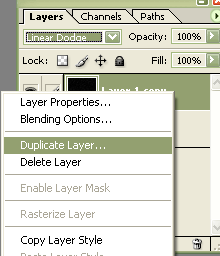
8. To make the stars show up better, duplicate the last layer several times; I've duplicated it 4 times in this example.
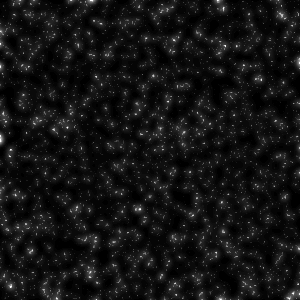
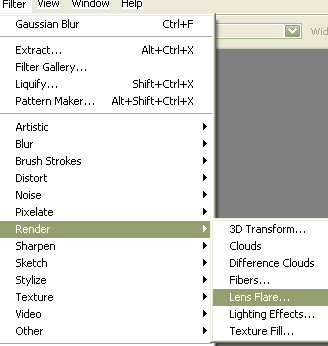
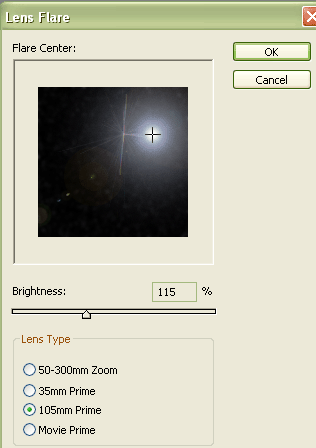
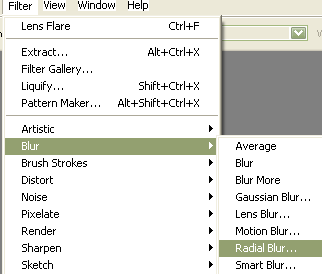
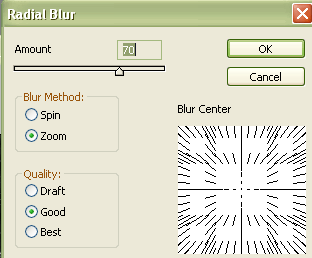
If you want to add an easy to do nebula to this image, add a Lens Flare with a bit of Radial Blur.
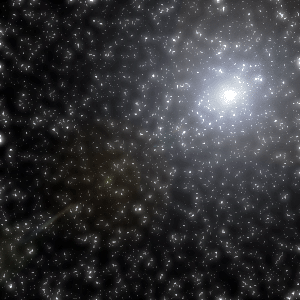
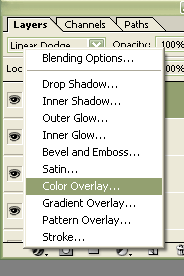
You can add colour effects to your image by right clicking on the top layer in your Layer Palette, select Blending Options and choose Colour Overlay. You can choose whatever colour you wish, then set the Overlay opacity low enough that you can see the stars and some colour.
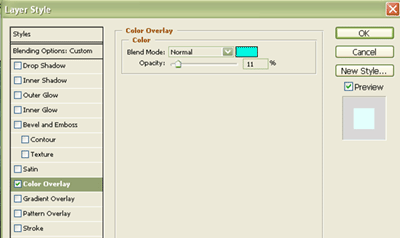
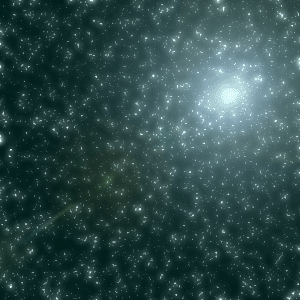
You can use the colour overlay on more than one layer, but you will have to adjust the Colour Overlay opacities to blend the layers so you can see some of each colour.