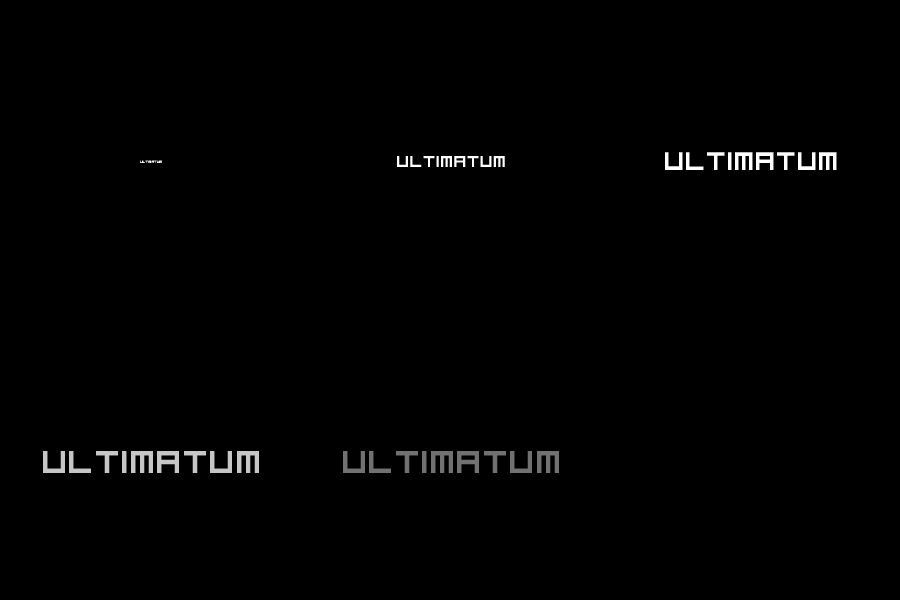
Well not that good title but what the heck
1. Open a new document (ctrl + N) I used 300*300, you can use it what ever you want
2. Fill it with black and type your text with white (I used visitor, size 24)
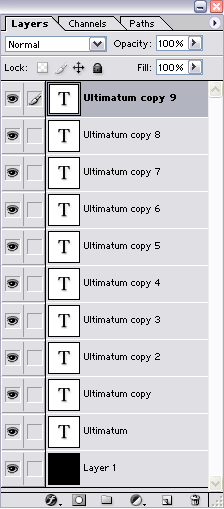
3. Then duplicate the text layer 9 times
If you did it right you have something like this
4. Now switch over to ImageReady (ctrl + shift + m)
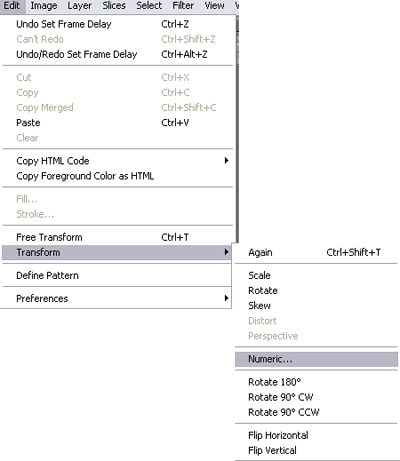
5. Now select your first text layer and go to edit>> transform> numeric..
6. Now change percent to 20%
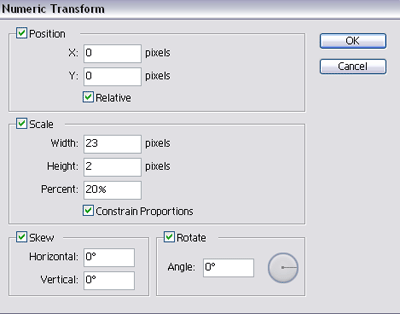
7. For copy 1 change the percent to 40%
For copy 2 change the percent to 60%
For copy 3 change the percent to 80%
Don't change copy 4 cause that has to be 100% and that's already done
For copy 5 change the percent to 120%
For copy 6 change the percent to 140%
For copy 7 change the percent to 160%
For copy 8 change the percent to 180%
For copy 9 change the percent to 200%
8. Now it's 1 big mess on 1 layer
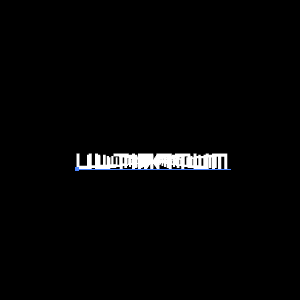
9. Now in your animation screen (if you don't see it go to window>> animation), on the first layer you see in the animation window hide all layers except text layer 1
10. Now make a new layer and hide layer 1 and unhide layer 2, do this until you had all layers
11. Now you must have 10 layers like this

12. Create a new layer and hide every layer expect the background, now click on the last layer (11) and hit tween, then use these settings
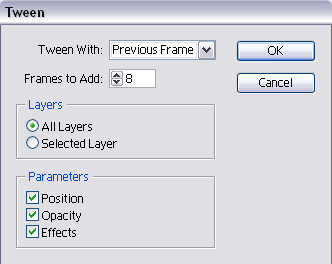
13. Well basically your done, but I think the animation is going to quick so I added a delay of 0.1 to the layers 1,2,3,4,5,6,7,8,9, and a delay of 1.0 on layer 10 and 19
This is my outcome