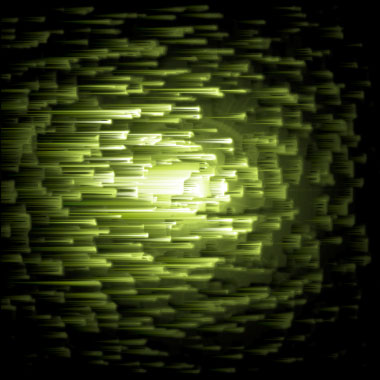
1. Make a 400x400 document. Now press "D" on your keyboard to reset the foreground and background colors to black and white. Make sure your background is BLACK.
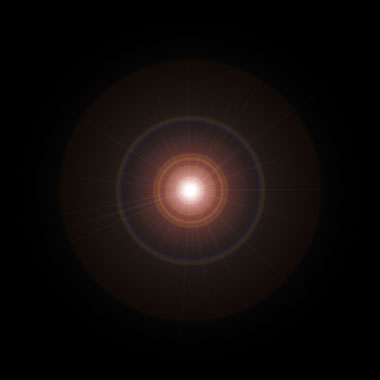
2. Apply a lens flare right in the middle of the canvas. Filter>Render>Lens Flare.
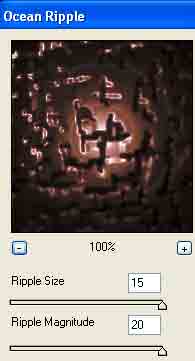
3. Now apply Filter>Distort>Ocean Ripple with these settings:
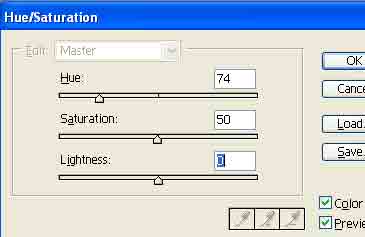
4. Press CNTRL+U to add some colors:
5. Apply Filter>Stylize>Wind and choose whatever side you want the wind to come from (left or right). Press CNTRL+F to apply the wind filter once more.
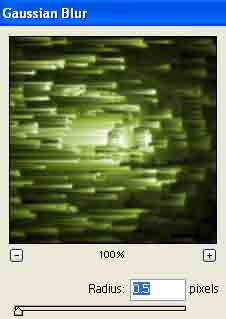
6. Duplicate the layer and apply Filter>Blur>Gaussian Blur to the duplicated layer.
7. Now change the blending for the top duplicated layer. Change it to Screen.
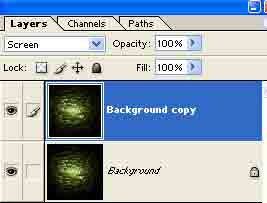
Bada boom bada bing, you got some stars.